Build an MCP App with Storyblok
Storyblok is the first headless CMS that works for developers & marketers alike.
MCP servers give AI agents a way to work with external systems by exposing tools for reading data, inspecting its structure, and making changes from the same conversation. Storyblok’s MCP server lets your agent find stories, inspect components and fields, and update content in a space through the Management API.
MCP Apps add interactive interfaces to that workflow, allowing a compatible host to render components alongside the agent’s response and keep the interaction in the same conversation.
This tutorial explains how MCP Apps work through a Storyblok preview app that fetches a draft story by slug and renders it alongside the agent’s response. The preview is one example of how you can use an interactive interface to work with content within a conversation.
Prerequisites
Before you start the implementation, make sure you have the following:
- A supported Node.js LTS release, version 22.12 or newer.
- A Storyblok space with a story to preview.
- A Storyblok preview access token to retrieve draft content.
- Familiarity with MCP tools and resources.
- An MCP Apps-compatible host, such as Claude Desktop, ChatGPT, or the official reference host.
If you want to skip ahead, clone the companion example and follow its README to run the app locally. You can also give the example to a coding agent and ask it to extend the app.
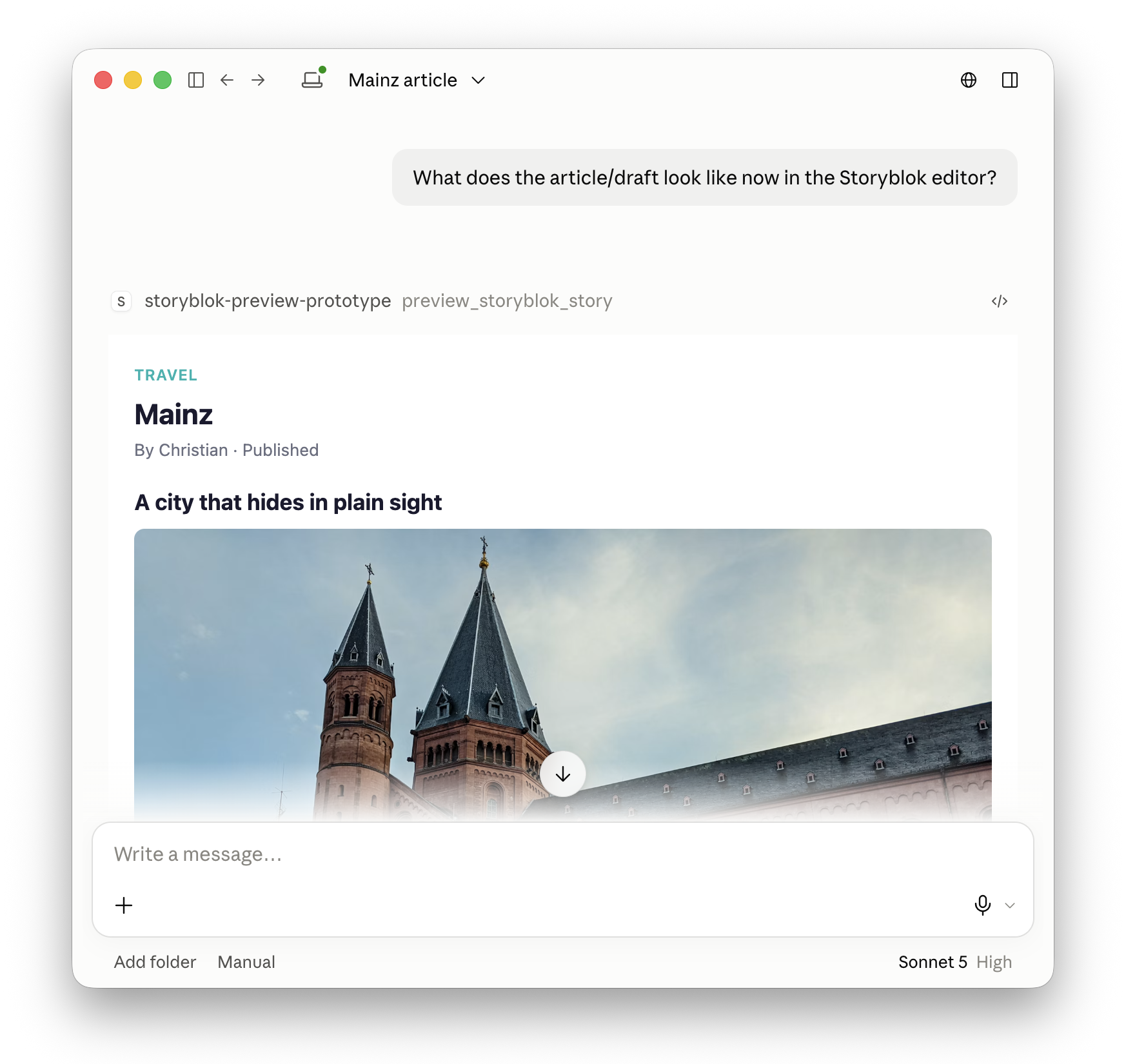
A Claude conversation displays a rendered Storyblok preview inside the conversation.
This example defines how the content renders inside the MCP App. To check how your changes look on your website, use your website’s preview in Storyblok’s Visual Editor.
MCP App structure
The MCP App you build in this tutorial has two parts: preview_storyblok_story, an MCP tool that retrieves the story on the server, and a UI resource that displays the story inside the host. The tool links its result to the interface, so a preview request follows these steps:
- The host passes the story’s full slug to
preview_storyblok_story. - The server uses that slug to fetch the draft through Storyblok’s Content Delivery API, then returns only the fields the preview needs.
- The tool links that response to a
ui://resource, which the host loads to render the story.
Create the MCP App project
The MCP App project from the official Build an MCP App guide provides the foundation for this tutorial, including its project structure, dependencies, bundling, transport, and testing. The rest of this tutorial builds on that foundation by implementing the Storyblok preview tool and interface step by step.
If you prefer to scaffold the project with an agent, you can install the official create-mcp-app skill with npx skills add modelcontextprotocol/ext-apps. Ask the agent to create the base MCP App, verify its local transport, and then implement the Storyblok-specific tool and interface from this tutorial.
Prepare Storyblok access
To let the app retrieve your draft story, open Settings → Access Tokens in the Storyblok space that contains the story and create a Preview access token. Add the token to .env along with the following settings so the server can fetch the content without exposing the token in the interface bundle:
STORYBLOK_DELIVERY_TOKEN=your-preview-access-token
STORYBLOK_VERSION=draft
STORYBLOK_REGION=eu
STORYBLOK_SPACE_ID=your-space-id
With STORYBLOK_VERSION set to draft, you can preview content changes before publishing them. Set STORYBLOK_REGION to match your space: eu is the default, and spaces in other regions require us, ca, ap, or cn. To include a link back to the story in Storyblok, also set STORYBLOK_SPACE_ID; otherwise, you can leave that optional setting out.
The companion example loads these settings from .env with dotenv when the server starts. For another scaffold, use its server environment configuration to make the same values available.
Prepare the article content
The example renders an article with the following fields:
Field | Type | Purpose |
|---|---|---|
| Text | Article heading |
| Textarea | Introduction |
| Text | Author name |
| Richtext | Article body |
Create an article content type with these fields and add a story at articles/mcp-apps-preview, or use an existing article and map its fields in fetchStory(). Save some content as a draft so the app has a story to retrieve. The initial interface displays the title, introduction, and author; the body example below adds the rich-text field.
This content model is specific to the example. For a page made of nested blocks, map those blocks to the components your preview supports.
Register the Storyblok preview tool
In this step, you register the tool that the MCP App uses to preview a Storyblok story. The tool receives a full story slug, fetches the draft from Storyblok, and returns only the fields the interface displays so the UI stays independent from the complete response.
import { registerAppResource, registerAppTool, RESOURCE_MIME_TYPE } from '@modelcontextprotocol/ext-apps/server';
import { McpServer } from '@modelcontextprotocol/server';
import { z } from 'zod';
import { fetchStory } from './storyblok.js';

const resourceUri = 'ui://storyblok/preview.html';

export function createServer() {
  const server = new McpServer({
    name: 'Storyblok Preview',
    version: '0.1.0',
  });

  registerAppTool(
    server,
    'preview_storyblok_story',
    {
      title: 'Preview Storyblok story',
      description: 'Render a Storyblok story by slug.',
      inputSchema: z.object({
        slug: z.string().describe('The full Storyblok story slug to preview'),
      }),
      _meta: { ui: { resourceUri } },
    },
    async ({ slug }) => {
      const story = await fetchStory(slug);

      return {
        content: [{ type: 'text', text: `Rendered a preview of /${story.slug}.` }],
        structuredContent: { story },
      };
    },
  );

  return server;
}
The _meta.ui.resourceUri value tells the host which interface to load when it calls preview_storyblok_story. Here, the host loads ui://storyblok/preview.html and passes the tool’s structured result to that view.
Fetch the Storyblok story
Next, add the function that the tool uses to fetch the story. Keep its Storyblok request on the server so the preview token stays out of the UI bundle, and return only the fields the interface needs to render the page.
Install Storyblok’s Content Delivery API client:
npm install @storyblok/api-clientAdd the following implementation to storyblok.ts:
import { createApiClient } from '@storyblok/api-client';
import { z } from 'zod';

interface PreviewStory {
  name: string;
  slug: string;
  title: string;
  intro: string;
  author: string;
}

export async function fetchStory(slug: string): Promise<PreviewStory> {
  const token = process.env.STORYBLOK_DELIVERY_TOKEN;
  if (!token) throw new Error('Set STORYBLOK_DELIVERY_TOKEN to a preview access token.');

  const client = createApiClient({
    accessToken: token,
    region: z.enum(['eu', 'us', 'ca', 'ap', 'cn']).parse(process.env.STORYBLOK_REGION ?? 'eu'),
  });
  const { data, error } = await client.stories.get(slug, {
    query: {
      version: z.enum(['draft', 'published']).parse(process.env.STORYBLOK_VERSION ?? 'draft'),
      excluding_story_fields: ['alternates', 'translated_slugs'],
    },
  });
  if (error) throw new Error(`Storyblok request failed (${error.response.status || 'network error'}).`);
  if (!data?.story) throw new Error('Storyblok did not return a story.');

  const story = data.story;
  const content = story.content;

  return {
    name: story.name,
    slug: story.full_slug,
    title: String(content.title ?? story.name),
    intro: String(content.intro ?? ''),
    author: String(content.author ?? 'Storyblok'),
  };
}
The excluding_story_fields option reduces the response size by omitting translation metadata that this preview doesn’t need.
The snippets use a minimal story shape. The companion repository adds fields such as updatedAt, bodyHtml, toc, and editUrl for a richer preview, so keep the server response and interface in sync when you extend either version.
Render the article body
The example’s body field contains rich text. To display that field below the article introduction, install Storyblok’s rich-text renderer:
npm install @storyblok/richtextAdd the following helper to storyblok.ts. The renderer handles the article’s rich-text nodes; the blok renderer displays a placeholder for embedded blocks:
import { renderRichText, type StoryblokRichTextDoc } from '@storyblok/richtext';

export function renderArticleBody(body: StoryblokRichTextDoc): string {
  return renderRichText(body, {
    renderers: {
      blok: () => '<aside>Embedded content</aside>',
    },
  });
}
Add bodyHtml: string to PreviewStory. In the object returned by fetchStory(), add the rendered body:
bodyHtml: content.body ? renderArticleBody(content.body as StoryblokRichTextDoc) : '',Replace the placeholder with renderers for the embedded components your article uses. The companion example’s renderEmbeddedComponent() displays block names and fields as a fallback.
Render the Storyblok preview
Now create the interface that displays the story returned by the tool. The MCP Apps bridge delivers the result to app.ontoolresult, where the view displays the article fields and the body you rendered on the server:
<main id="preview" aria-live="polite">
<p>Waiting for a Storyblok story.</p>
</main>
<script type="module">
import { App } from '@modelcontextprotocol/ext-apps';
const app = new App({ name: 'Storyblok Preview', version: '0.1.0' });
const preview = document.querySelector('#preview');
const escapeHtml = (value) => String(value).replace(/[&<>\"']/g, (character) => ({
'&': '&',
'<': '<',
'>': '>',
'\"': '"',
"'": ''',
})[character]);
app.ontoolresult = ({ structuredContent }) => {
const story = structuredContent?.story;
if (!story) return;
preview.innerHTML = `
<h1>${escapeHtml(story.title)}</h1>
<p>${escapeHtml(story.intro)}</p>
<div id="story-body"></div>
<p>${escapeHtml(story.author)}</p>
<small>/${escapeHtml(story.slug)}</small>
`;
const body = preview.querySelector('#story-body');
if (body) body.innerHTML = story.bodyHtml ?? '';
};
await app.connect();
</script>To let the host load this interface, register the bundled HTML as the ui:// resource linked to the tool. Add the following imports to server.ts:
import { readFile } from 'node:fs/promises';
import path from 'node:path';
import { fileURLToPath } from 'node:url';
Inside createServer(), insert the following code before return server to register the resource with the MCP Apps MIME type:
const serverFile = fileURLToPath(import.meta.url);
const serverDir = path.dirname(serverFile);
const distDir = path.basename(serverDir) === 'dist'
  ? serverDir
  : path.join(serverDir, 'dist');

registerAppResource(
  server,
  resourceUri,
  resourceUri,
  { mimeType: RESOURCE_MIME_TYPE },
  async () => ({
    contents: [{
      uri: resourceUri,
      mimeType: RESOURCE_MIME_TYPE,
      text: await readFile(path.join(distDir, 'mcp-app.html'), 'utf8'),
    }],
  }),
);
Treat Storyblok’s response as untrusted content inside the sandboxed view. Escape values before inserting them into HTML. If the preview loads external images, fonts, or scripts, add a content security policy that allows only the origins it needs.
Connect the app to a host
After you build the server, start its transport and connect it to an MCP Apps-compatible host.
Claude Desktop
- Build the MCP server and note the path to its
stdioentry point. - Add the server to Claude Desktop's MCP configuration with the command and environment variables from this tutorial.
- Restart Claude Desktop and confirm that Preview Storyblok story appears in the available tools.
- Ask Claude to preview a full Storyblok slug, such as
articles/mcp-apps-preview.
For a local Claude Desktop connection, add the built server to its MCP configuration. Replace the path with the location of your compiled entry point:
{
  "mcpServers": {
    "storyblok-preview": {
      "command": "node",
      "args": ["/absolute/path/to/dist/main.js", "--stdio"],
      "env": {
        "STORYBLOK_DELIVERY_TOKEN": "your-preview-access-token",
        "STORYBLOK_VERSION": "draft",
        "STORYBLOK_REGION": "eu",
        "STORYBLOK_SPACE_ID": "your-space-id"
      }
    }
  }
}
For a remote host, expose the HTTP transport through HTTPS and register its /mcp endpoint with the host. You can deploy the server wherever you host Node.js apps. Before exposing draft content, add the authentication required by your host.
To test locally, use the official reference host described in the MCP Apps testing guide. It connects to the local endpoint, so you can test the app before deploying it.
ChatGPT
- Build the MCP server and expose its Streamable HTTP endpoint through a public HTTPS URL.
- Create or add the MCP App in ChatGPT's developer settings and enter the endpoint URL.
- Complete the host's authorization and tool scan, then enable the app in a conversation.
- Ask ChatGPT to preview a full Storyblok slug, such as
articles/mcp-apps-preview.
Reference host
- Start the official MCP Apps reference host from the testing guide.
- Enter the local MCP server URL or select the stdio server configuration.
- Select Preview Storyblok story from the tool list.
- Enter a full Storyblok slug and inspect the rendered view.
Preview a Storyblok story
Once you connect the app, provide the host with the full Storyblok slug you want to preview:
Preview the Storyblok story at articles/mcp-apps-preview.The prompt uses articles/mcp-apps-preview, the companion project’s example slug. Replace it with the full slug of a story from your own space.
You can also connect Storyblok’s MCP server to the same host to find stories, inspect their content models, and update content. For this preview, that lets you ask for an article by name without looking up its slug yourself. The agent finds the story through the Management API and passes its slug to the preview app, which uses its own preview access token to fetch the draft through the Content Delivery API.
With both servers connected, try the following prompt:
Find the article called “MCP Apps preview” in my Storyblok space and preview it with preview_storyblok_story.A request such as “Show me a preview of this article” is usually enough for the host to choose the tool. If the host returns text without rendering the interface, ask it explicitly to use preview_storyblok_story and check that the server is connected.
After the host invokes the tool, the server fetches the draft and the linked interface renders it in the conversation. To switch stories, send another full slug.
A host without MCP Apps still receives the tool’s text response. MCP Apps-compatible hosts render the linked interface alongside it.
Summary
The app now accepts a Storyblok slug, fetches the draft story, and renders the result inside a compatible host. Possible extensions include:
- Component-level previews.
- Viewport controls.
- Revision comparisons.
- Links that open the story in Storyblok.
Each extension needs additional tool inputs, permissions, or interface work. Revision comparisons use Storyblok’s Compare a Story Version endpoint, and links back to Storyblok use the MCP Apps openLink API. Storyblok remains the source of the content and its editing permissions. The MCP App brings the rendered result into the agent’s conversation. To extend the example, refer to the MCP Apps documentation for the available server and interface APIs.
Questions or Feedback?
Join our Discord (opens in a new window)Author