Practical FlowMotion: Build an Automatic Tag Correction Workflow

Storyblok is the first headless CMS that works for developers & marketers alike.
It happens to everyone now and then: you wrap up a story, add some metadata, and without realizing it, type a tag that’s not quite right. A small typo can make your story less discoverable when it’s needed most.
FlowMotion can help with that. Continue reading to learn how to use Storyblok’s content orchestration tool to build an automated workflow that identifies mistyped tags and automatically corrects them.
Prerequisites
This tutorial assumes the following:
- You’re familiar with FlowMotion
- It’s enabled in your Storyblok organization, and
- You’ve already set it up and experimented with workflows.
For an introduction to FlowMotion, read the FlowMotion developer concept and follow the setup steps.
An overview of the tag correction workflow
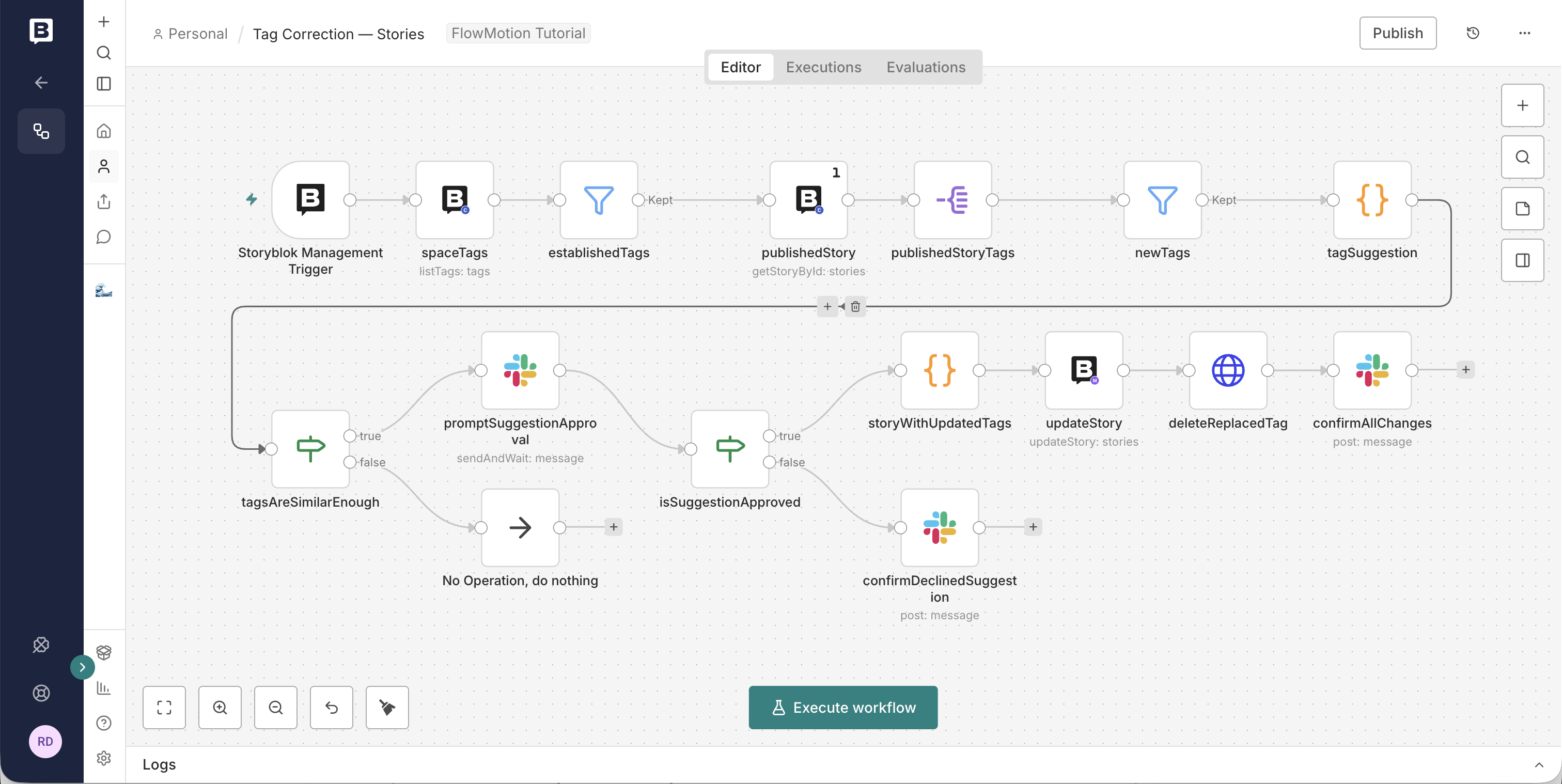
Before you start building, it’s important to think through what steps you’re expecting to take along the way. The tag correction workflow includes the following nodes:
- Tap into the Management API with the Story Published trigger, an event that runs each time you publish a new story.
- Use the Content Delivery API’s List tags action to collect all existing tags in the space.
- Use the Content Delivery API’s Get a story action to extract new tags assigned to the story that triggered the workflow.
- Use a native n8n Code node to compare the outputs of the previous steps.
- Use the Management API’s Update a story action to modify the story.
To refine the responses from Storyblok’s APIs, each step also involves native n8n nodes, including Filter, Split Out, If, Slack, and HTTP Request.
Build the workflow
Open Storyblok → My Organization → FlowMotion and select Create workflow.
This workflow uses both the Content Delivery and Management API; each requires its own access token. Configure the necessary credentials before you start building.
Select the Management API Story Published trigger and add it to the new workflow.
Create an “all tags” baseline for comparison
Next, add a List tags node named spaceTags. This node provides an itemized array of objects with name and taggings_count properties.
When run, spaceTags retrieves every tag in the space, including the tags you want to correct. To prevent the workflow from suggesting the wrong tags, you need to exclude them from the list. Add a Filter node named establishedTags and set a condition: each item’s taggings_count must be greater than 1, generating a list of tags you’ve used at least twice before.
If your space includes many tags, consider setting a higher value for taggings_count. This sets a higher threshold for the workflow to find a suitable established tag to suggest to you.
The result is an array of objects representing tags in your space, each assigned to at least two stories. That’s the baseline for the comparison you’d run later.
Isolate new tags
The output of the Story Published trigger includes a story_id, which you need for the current step. To use it, add a Get a story node named publishedStory.
Open Settings and select Execute Once, ensuring the node results in a single JSON object. To get the trigger story’s JSON, enter the following into the ID field:
{{ $('Storyblok Management Trigger').item.json.story_id }}Add a Split out node named publishedStoryTags and select the field tag_list to split out from the story’s JSON. Set the Include field to No Other Fields, and the Destination Field Name to name; this holds the keys that correspond to the tag values.
Next, add another Filter node named newTags. This node handles tags assigned to the trigger story as well as other stories in your space.
Under Conditions, add the following to the top-left text field:
{{ $('establishedTags').all().find((tag) => tag.json.name == $('publishedStoryTags').item.json.name) }}From the dropdown on the top-right, select Object → does not exist. This scans existing tags, compares each against the list of tags assigned to the trigger story, and keeps only tags that do not match any existing tags.
Compare tags and find alternatives
The current workflow generates two arrays:
establishedTags: a list of existing tags not assigned to the trigger story, and used at least twice before.newTags: a list of new tags assigned only to the trigger story.
Now you’re finally ready to detect which tags to replace. Add a Code node named tagSuggestion that inspects both lists to determine the most probable tag replacement option.
Keep the node’s default mode of Run Once for All Items, and paste the following code snippet into the JavaScript field:
let closestNewTag = "";
let closestEstablishedTag = "";
let proximity = 0;

function stringSimilarity (string1, string2) {
  // Gives a pair of strings a score between
  // 0 (completely different strings) and
  // 1 (completely identical strings)
  let longerStringLength = Math.max(string1.length, string2.length);
  let sameCharacterCount = longerStringLength - editDistance(string1, string2);
  return sameCharacterCount / longerStringLength;
}

function editDistance(string1, string2) {
  // Based on Levenshtein distance
  // Determines how many character changes are
  // necessary to transform one string into another
  string1 = string1.toLowerCase();
  string2 = string2.toLowerCase();

  var costs = new Array();
  for (var i = 0; i <= string1.length; i++) {
    var lastValue = i;
    for (var j = 0; j <= string2.length; j++) {
      if (i == 0)
        costs[j] = j;
      else {
        if (j > 0) {
          var newValue = costs[j - 1];
          if (string1.charAt(i - 1) != string2.charAt(j - 1))
            newValue = Math.min(Math.min(newValue, lastValue),
              costs[j]) + 1;
          costs[j - 1] = lastValue;
          lastValue = newValue;
        }
      }
    }

    if (i > 0) costs[string2.length] = lastValue;
  }
  return costs[string2.length];
}

for (const newTag of ($("newTags").all())) {
    for (const establishedTag of $('establishedTags').all()) {
      let currentProximity = stringSimilarity(newTag.json.name, establishedTag.json.name);
      if (currentProximity >= proximity) {
        closestNewTag = newTag.json.name;
        closestEstablishedTag = establishedTag.json.name;
        proximity = currentProximity;
    }
  }
}

return [{
  currentTag: closestNewTag,
  suggestedTag: closestEstablishedTag,
  proximity: proximity,
}];
The code runs the two tag lists through a set of functions that compare each pair of strings. The editDistance function returns the number of character insertions, substitutions, or deletions in each string, and the stringSimilarity function uses the result to return the percentage of untouched letters.
This code uses the Levenshtein distance metric to measure the comparative lexical difference between two strings. For a more modern approach to text similarity, check the developer blog post on vector databases and semantic search.
After comparing each pair’s current proximity to its previously achieved maximum, the code outputs a new pair: the newly added tag and the established tag with the closest characters.
Notify users about the workflow’s findings
In its current state, the workflow presents the pair of tags that are most similar. But if “most similar” isn’t high enough, you don’t want to get replacement suggestions.
To solve this riddle, add an If node named tagsAreSimilarEnough that defines a minimum threshold to merit replacement. Drag the proximity property into the first text field, select Number → is greater than, and enter 0.75 in the second text field. To warrant a replacement suggestion, the two strings must share at least 75% of the characters.
If that’s not the case, you want the automation to end; add a No Operation, do nothing node that stops the workflow.
However, if the tags are similar enough, the workflow should notify the user via Slack. Add a Slack node named promptSuggestionApproval with an Access Token credential. Follow n8n’s Slack integration guide for more information.
Keep the Resource of Message and change the Operation to Send and Wait for Response. Select the Slack channel to send to, and enter the following message content:
It looks like you used the tag *"{{$('tagSuggestion').item.json.currentTag}}"* for the story *"{{ $('publishedStory').last().json.name }}"*.
Did you mean *"{{$('tagSuggestion').item.json.suggestedTag}}"*?
Next, under Approval Options, select Add option. To allow users to select between two options, set Type of Approval to Approve or Disapprove. Set the Approve Button Label to Yes, update this tag, and the Disapprove Button Label to No, this is correct.
Once FlowMotion sends the Slack message, it pauses until a user selects an option. When they do, the Workflow outputs an object with a data property, itself an object containing an approved boolean (true or false, depending on the user’s selection).
The automation behaves differently depending on which option the user chooses, so add another If node named isSuggestionApproved:
- If the user declines the tag suggestion, the workflow ends.
- Otherwise, continue to the next step.
Update and publish the story
Add a Code node named storyWithUpdateTags that prepares for changing the tag. Keep Run Once for All Items, and paste the following snippet into the JavaScript field:
let story = $('publishedStory').first().json;
let suggestion = $('tagSuggestion').first().json;

story.tag_list[story.tag_list.indexOf(suggestion.currentTag)] =
    suggestion.suggestedTag

return [{json: story}];
The code takes the trigger story’s JSON, replaces the new tag with the suggested substitution, and returns the modified JSON object.
Next, add an Update a story node named updateStory that handles the rest.
Keep the Resource and Operation as Stories and Update, respectively, and select the space.
Drag the story’s id from the input into the ID field, and enter {{ $json }} into the story field type. Finally, to republish the updated trigger story immediately, add a publish field and set it to true.
With that in place, a user approval on Slack triggers an automatic update of a story, complete with an appropriate tag.
Clean up
Before calling it done, take a moment to clean up.
First, add an HTTP Request node named deleteReplacedTag. Use the DELETE method, with the following URL:
https://mapi.storyblok.com/v1/spaces/{{ $('Storyblok Management Trigger').first().json.space_id }}/tags/{{ $('tagSuggestion').item.json.currentTag }}The code traces back to the initial trigger to obtain the correct space_id and targets the replaced tag to fill in the necessary parameters for the API call.
And last but not least, add one final Slack node named confirmAllChanges, and notify the user that FlowMotion has successfully made the requested change.
Once again, set the Operation to Send and use the Simple Message Type with the following content:
Understood. Changed *"{{ $json.currentTag }}"* to *"{{ $json.suggestedTag }}"*, updated and republished the story, and deleted the *"{{ $json.currentTag }}"* tag from your space.With the redundant tag removed and the user informed of all changes, the automation can now end.
Next steps
The tag correction workflow you built is ready, but it can also function as a foundation for larger, more advanced scenarios:
- Identify multiple tag typos and iterate through suggested replacements.
- Offer suggestions to replace a tag and give the user a text field to respond.
- Detect typos against a dictionary rather than existing story tags.
- Fix typos that resolve to tags already selected for the same story.
Thanks to FlowMotion, you have countless ways to take this tag correction automation and build the perfect workflow for your team.
Looking for inspiration for the next workflow? Watch the video on the first five workflows we recommend trying.