

Translations
Storyblok offers several approaches to managing multilingual content, each suitable for different teams, content strategies, and operational scopes: field-level translation, folder-level translation, and space-level translation.
Some projects combine these approaches and set up separate folders for each language (folder-level), where stories within these folders include some translatable fields (field-level).
Other projects that may require complete customization of structure and content use separate spaces for each language (space-level).
Depending on the approach, editors can translate specific fields and entire stories, either manually or with AI.
Set up field-level translations
Section titled “Set up field-level translations”Before you can translate specific fields or entire stories, define at least one target language and set related space preferences.
Open Settings → Internationalization:
- Under Languages, select the languages to add.
- Under Alternative Versions, choose whether to associate translated story versions in the Visual Editor.
- Under Flag display, choose if or which flag icons display in the Visual Editor.
- Under Publish translations individually, choose whether to publish individual versions instead of all translations simultaneously.
To set fields as Translatable, you need access to the Block library.
Generate AI translations
Section titled “Generate AI translations”Storyblok supports AI translations in dozens of languages and locales, letting editors generate machine-based translations in the Visual Editor.
48 supported languages
- Albanian
- Amharic
- Arabic
- Bengali
- Bulgarian
- Catalan
- Chinese
- Croatian
- Czech
- Danish
- Dutch
- English
- Estonian
- Finnish
- French
- Georgian
- German
- Greek
- Hebrew
- Hungarian
- Indonesian
- Italian
- Japanese
- Kazakh
- Korean
- Latvian
- Lithuanian
- Malay
- Nepali
- Norwegian
- Persian
- Polish
- Portuguese
- Romanian
- Russian
- Serbian
- Slovak
- Slovenian
- Spanish
- Swahili
- Swedish
- Tagalog
- Thai
- Turkish
- Ukrainian
- Urdu
- Vietnamese
- Welsh
To use AI translations in your space, enable the feature in Settings → Labs.
Translate a story with AI
Section titled “Translate a story with AI”To translate all the text-based fields in a story, open the Languages menu in the Visual Editor, hover over the target language, and select AI Translate.
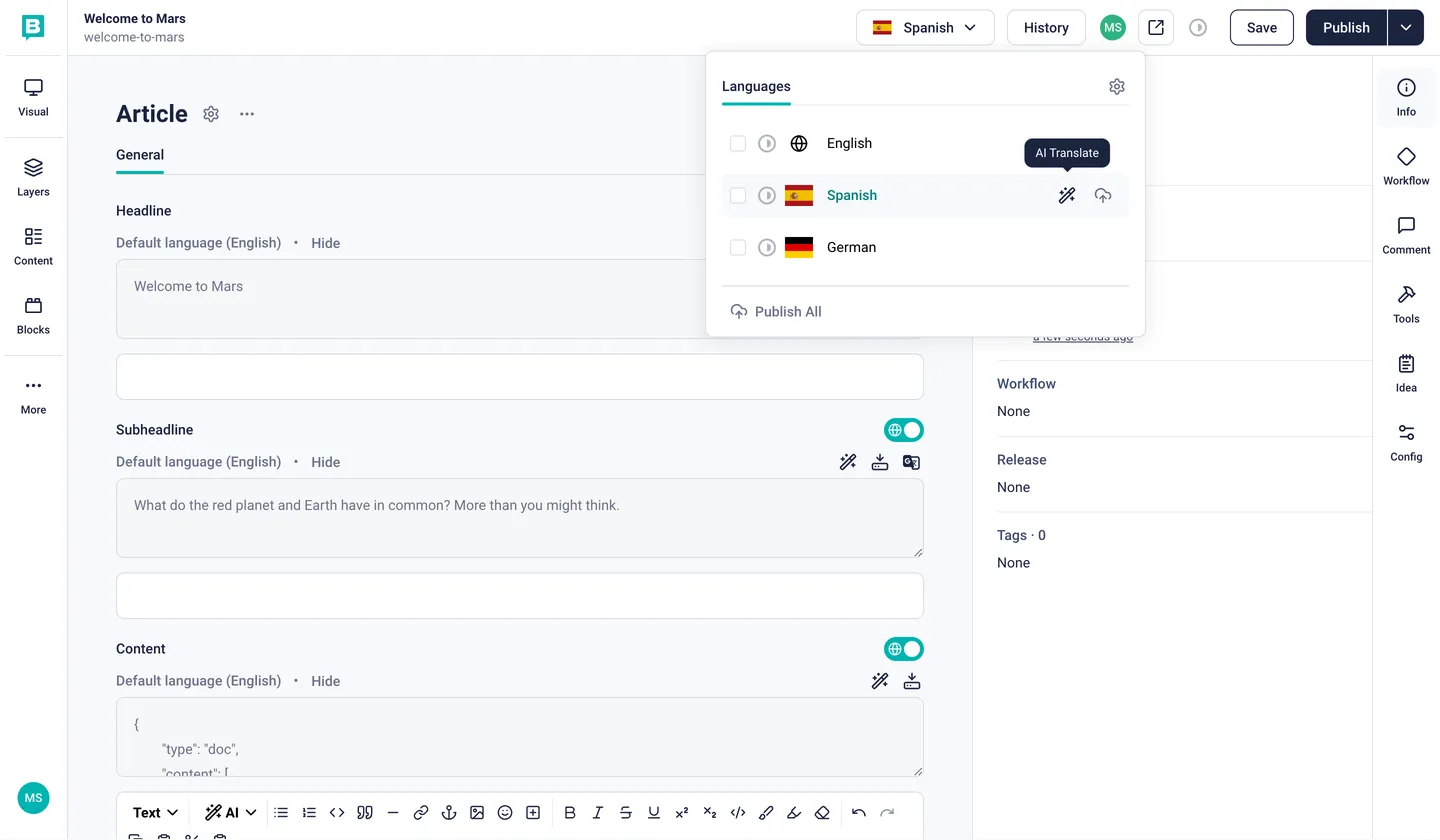
Translate a story with AI.
Confirm whether to translate all fields marked as Translatable from the Default language into the selected target language. To regenerate translations for previously translated fields, select Overwrite fields that have already been translated.
Translate individual fields
Section titled “Translate individual fields”To translate a single field in a story, open the story in the Visual Editor and select the target language from the Languages menu. Every supported field has a Translate toggle with a globe icon next to its name.
When you activate field translation, a new menu appears with the following options:
- Show or Hide: display the default language value.
- Translate using AI: generate an AI translation.
- Add default language content: insert the default language value.
- Open in Google Translate: use Google's service to translate.
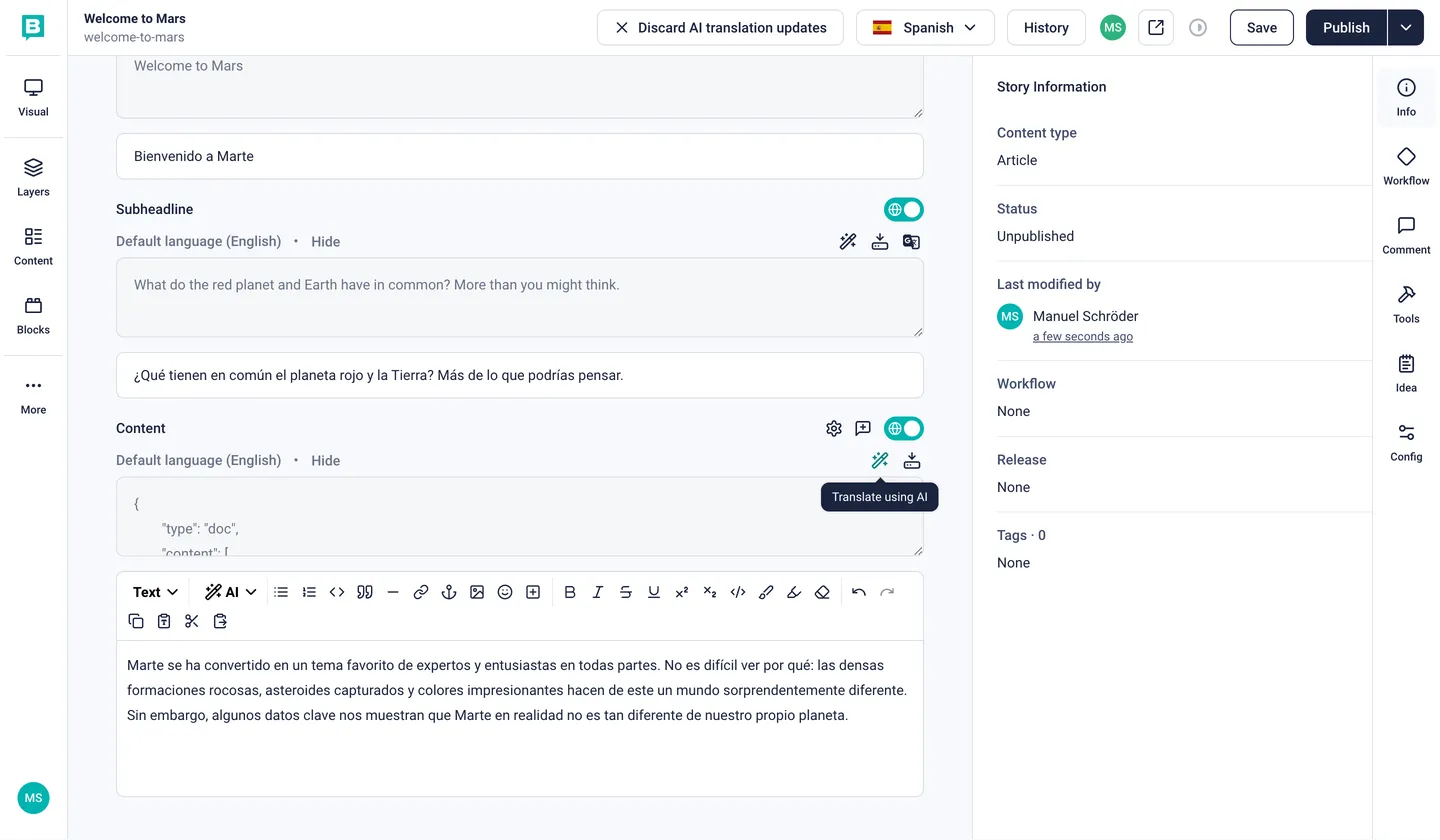
Translate a field with AI.
Use any of these tools or input a translation yourself. When using AI translations, review the generated text:
- Select Add Translated Content to use the translation, or
- Select Generate New Translation to retry.
Clone and translate stories
Section titled “Clone and translate stories”Storyblok offers the following tools and methods to manage translated story versions:
- Multi-space orchestration: clone a story into another space and translate the content with AI.
- The Dimensions app: clone a story into another folder, translate the content with AI, and automatically set alternate versions.
- Manual folder-level management: duplicate stories and folders, translate the content, and associate translated versions.
Translate with the Dimensions app
Section titled “Translate with the Dimensions app”Use the Dimensions app to create an AI-translated clone of a story. Open Content and select the story from its respective folder. In the Visual Editor, open Languages → Dimensions, hover over the target folder, and select Create Clone & AI Translate.
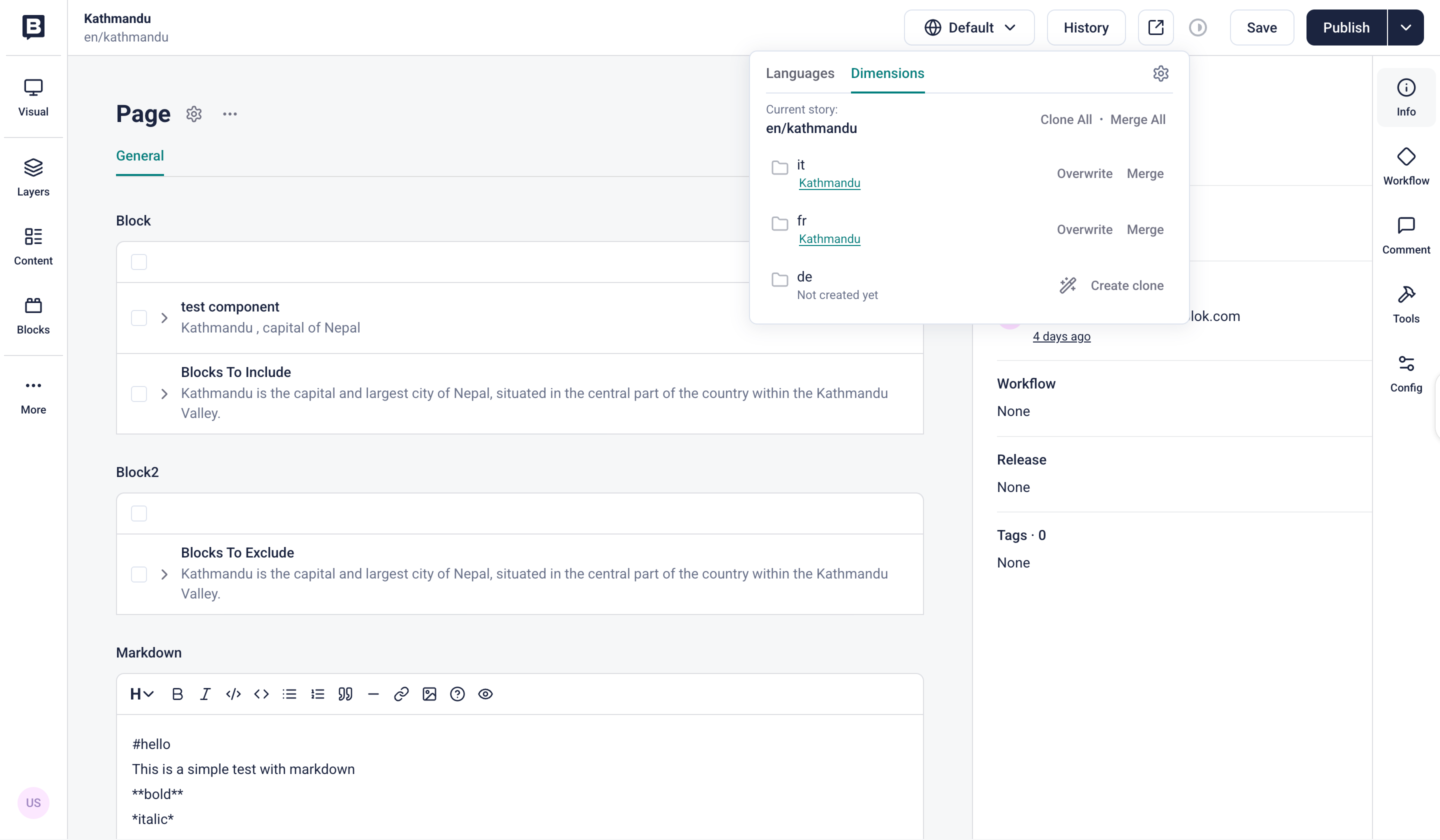
Create a translated version of a story with the Dimensions app.
The pop-up window displays the Target language (defined in Settings → Dimensions) and lets you generate an AI translation of the entire page or specific fields:
- To translate the page, select Clone & Translate.
- To pick specific fields, select Custom Field Translation, choose the fields, and then Clone & Translate.
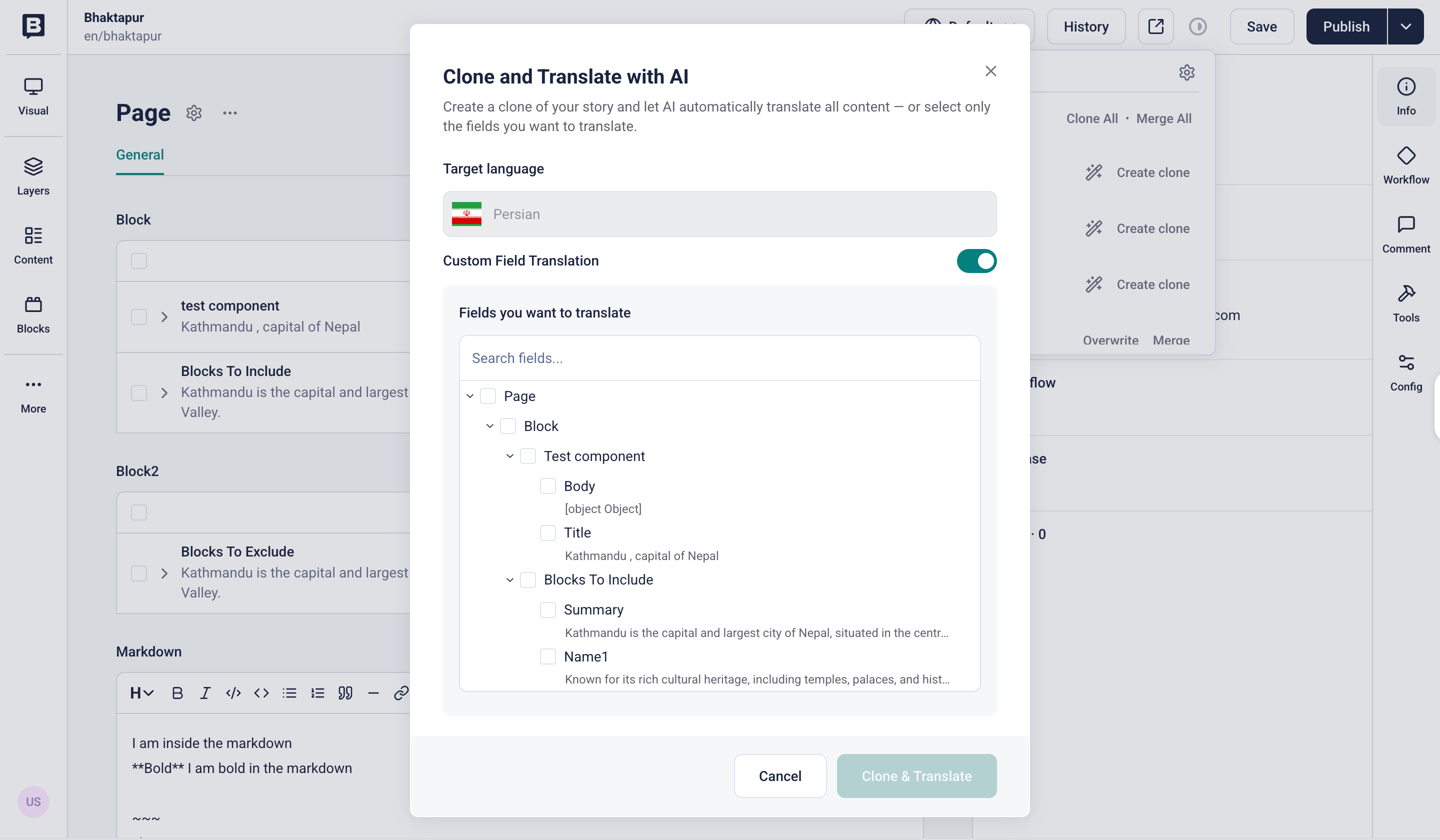
Choose which fields to translate with the Dimensions app.
Once the translated story is ready, open it from Languages → Dimensions and review the AI-generated translation.
Translation management systems
Section titled “Translation management systems”Storyblok offers integrations with popular translation management systems (TMS) via apps. The following third-party services are available:
Was this page helpful?
This site uses reCAPTCHA and Google's Privacy Policy (opens in a new window).Terms of Service (opens in a new window) apply.
Get in touch with the Storyblok community