

Taxonomies
Taxonomies let you group stories into categories and terms. Use taxonomies to create multilevel hierarchy relationships between stories.
Storyblok provides several ways to organize stories and shape the structure of your content. For example, consider how a multilingual e-commerce website would use each type:
- Folders: arrange languages by folders and use the slugs to build navigation and breadcrumb menus.
- Tags: assign the tag “sale” to all relevant products, and create filters in the Content section.
- Taxonomies: categorize all customer service-related stories under the taxonomy “support,” assign specific terms (“Smart TV”, “44 inch,” or “8K”) to relevant product stories, and serve the relevant page to site visitors.
Since each type excels in different scenarios, you can use them together to create a rich, elaborate information architecture that helps editors and visitors alike.
Manage taxonomies
Section titled “Manage taxonomies”To create a new taxonomy, open the Taxonomies section and select + New taxonomy. The Create new taxonomy window prompts you to input a Name, a Technical name, and an optional description. If you don’t provide a technical name, Storyblok transforms the display name into a slug-compatible value.
To view all the taxonomies in a space, open the Taxonomies section. You can search and sort taxonomies by name or technical name.
Create terms
Section titled “Create terms”Once you create a taxonomy, select it and open the terms window. Select + New term, and input a Name, a Technical name, and an optional description.
You can create a flat structure or a multilevel hierarchy.
- To add a standalone, flat collection of terms, select + New term, and repeat the previous steps.
- To add sub-terms, hover over the top-level term and select Add sub-term from the menu on the right. Repeat the previous steps to create as deep a structure as you need.
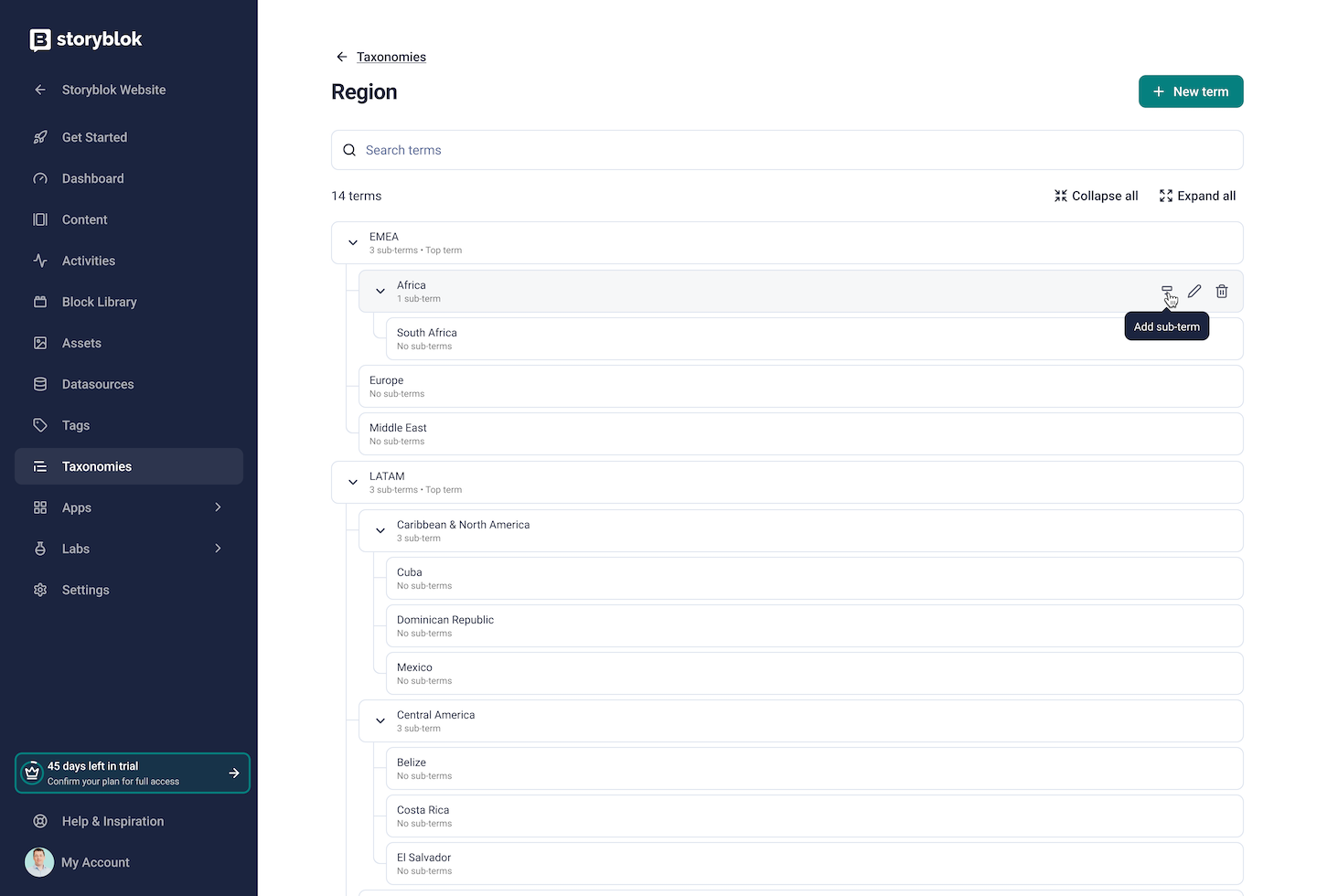
Taxonomies support a flat structure or a multilevel hierarchy.
Use taxonomies
Section titled “Use taxonomies”To assign stories to specific taxonomies or terms, first associate them with blocks.
Define taxonomies for a block
Section titled “Define taxonomies for a block”Open the Block Library and select the relevant content type or universal block. Select the Taxonomy tab and choose the Scope: either a Taxonomy or specific Terms:
- Taxonomy: select the taxonomy from the drop-down.
- Terms: select the taxonomy from the drop-down and choose the terms in the Taxonomy term window.
Optionally, set Maximum allowed terms and whether it’s Required. Choose Add and Save.
You can define multiple supported taxonomies and terms for each block, with some limitations:
- If you select a taxonomy, you can’t specify specific terms. Editors can assign any of its terms to a given story.
- If you select a specific term, it must have at least one sub-term for editors to choose from.
Assign taxonomies to a story
Section titled “Assign taxonomies to a story”Open the Content section and select the relevant story. Open Taxonomies in the right toolbar, and select + Assign. In the Taxonomy term window, choose which terms to assign to the story.
The block’s taxonomy definitions may define some terms as Required. If so, select at least one term before saving the story.
Was this page helpful?
This site uses reCAPTCHA and Google's Privacy Policy (opens in a new window).Terms of Service (opens in a new window) apply.
Get in touch with the Storyblok community