Storyblok named a Leader in IDC MarketScape 2025 for AI-Enabled Headless CMS - Download it here!

Browse apps
Install

Requires Growth plan

Author
Storyblok GmbH
Last update
12/11/2025
Dimensions
Easily manage multi-tree structures for languages, regions, markets, and more.
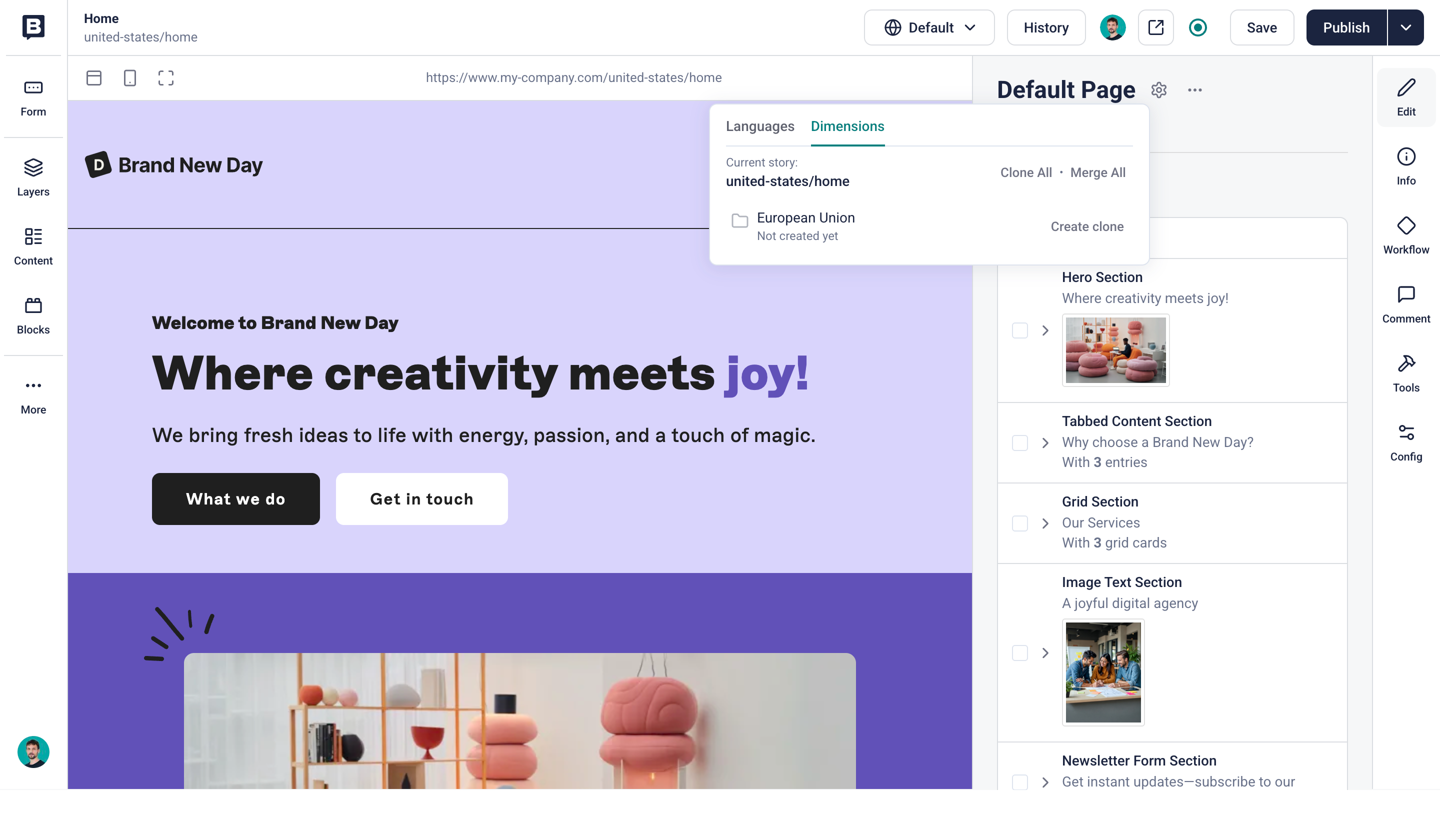
Easily manage localization for languages, regions, markets, and more.

The Dimensions app offers a convenient way to create and manage alternative versions of stories, organized across top-level folders designated for languages, regions, markets, and more.

Learn more about internationalization strategies available with Storyblok.

An everyday use case is working on a multilingual website. Using the Dimensions App, prepare a story in one language and quickly duplicate it to other language folders. Once duplicated, the story can be managed individually, with its structure or content adapted as needed.

If enabled, you can use AI Translations to auto-translate stories while cloning them. Read more about using AI Translations in the Dimensions app in the AI assistance manual.

Usage

Once installed, access the Dimensions tab from the Languages drop-down menu in the Visual Editor.

The Dimensions app supports the following actions:

  • Clone All: Create a duplicate of the current story in all other top-level folders.
  • Create Clone: Create a duplicate of the current story in the selected destination folder.
  • Merge All: Copy over the structure of the current story to all corresponding stories in the other top-level folders.
  • Merge: Copy over the structure of the current story to the corresponding story in the selected destination folder.
  • Overwrite: Replace the structure and content of the corresponding story in the selected destination folder with that of the current story.
  • Clone and AI Translations: Create a duplicate of the current story in the selected destination folder, with the fields translated using AI Translations.

Granular field control

The Dimensions app provides granular control over merges and overwrites of each field. To manage these settings, select the relevant field in the Block Library and apply the preferred option under Edit field → Overwrite & Merge:

  • Force overwrite by merge: This option effectively transforms the Merge action into the Overwrite action. Select it when you want to duplicate the structure and the content (the field's value).
  • Exclude from overwrite action: This option prevents the content (the field's value) from being overwritten. Select it when you want only to duplicate the structure and not the content.
  • Exclude from merge action: This option prevents the structure (blocks) from being overwritten. Select it when you want a block to exist only in a specific story.
  • Exclude from AI translation: This option prevents the field from being translated when using AI Translations.

Blocks fields

If you merge a story that includes the Blocks field, any nested blocks within it will be duplicated in the corresponding story under the selected destination folder.

To change the default behavior, enable the Exclude from merge option in the field settings. This prevents nested blocks from being copied to the selected folder’s destination story.

Good to know

  • The Clone actions are hidden if the story exists in one or more folders.
  • When using Merge, the field's value (content) is only duplicated if provided when the block is first added to the story. Consequent merges will not affect the field value.
  • The app automatically links corresponding stories across folders. Adapt the frontend code to notify search engines that the story has alternative localized versions. Check which stories are linked to the current one in the Config → Alternative versions section of the Visual Editor.
  • All actions are bi-directional. It doesn't matter which was the original story and which was cloned.