

Agents
Storyblok Agents is an in-app assistant with a chat-based interface. It can read, modify, and analyze the space’s content. Agents are LLM-powered and use the space’s AI customization.
What can agents do
Section titled “What can agents do”Agents supports 23 actions, named tools: 12 read-only and 11 with write access:
Capability | Access |
|---|---|
Browse and search stories | Read |
Read a story's full content | Read |
Browse blocks | Read |
Read a block's field schema | Read |
Browse datasources | Read |
Read a datasource's entries | Read |
Browse assets | Read |
List releases | Read |
Create a story | Write |
Update a story's content | Write |
Update a story's metadata | Write |
Publish a story | Write |
Unpublish a story | Write |
Move a story | Write |
Duplicate a story | Write |
Tag a story | Write |
Delete a story | Write |
Create a folder | Write |
Translate a story | Write |
Read actions run without confirmation, but any action that writes content or changes configuration requires manual approval.
Confirmation prompts appear inline in the chat. To confirm or deny, choose the option or press 1 or 2 on your keyboard.
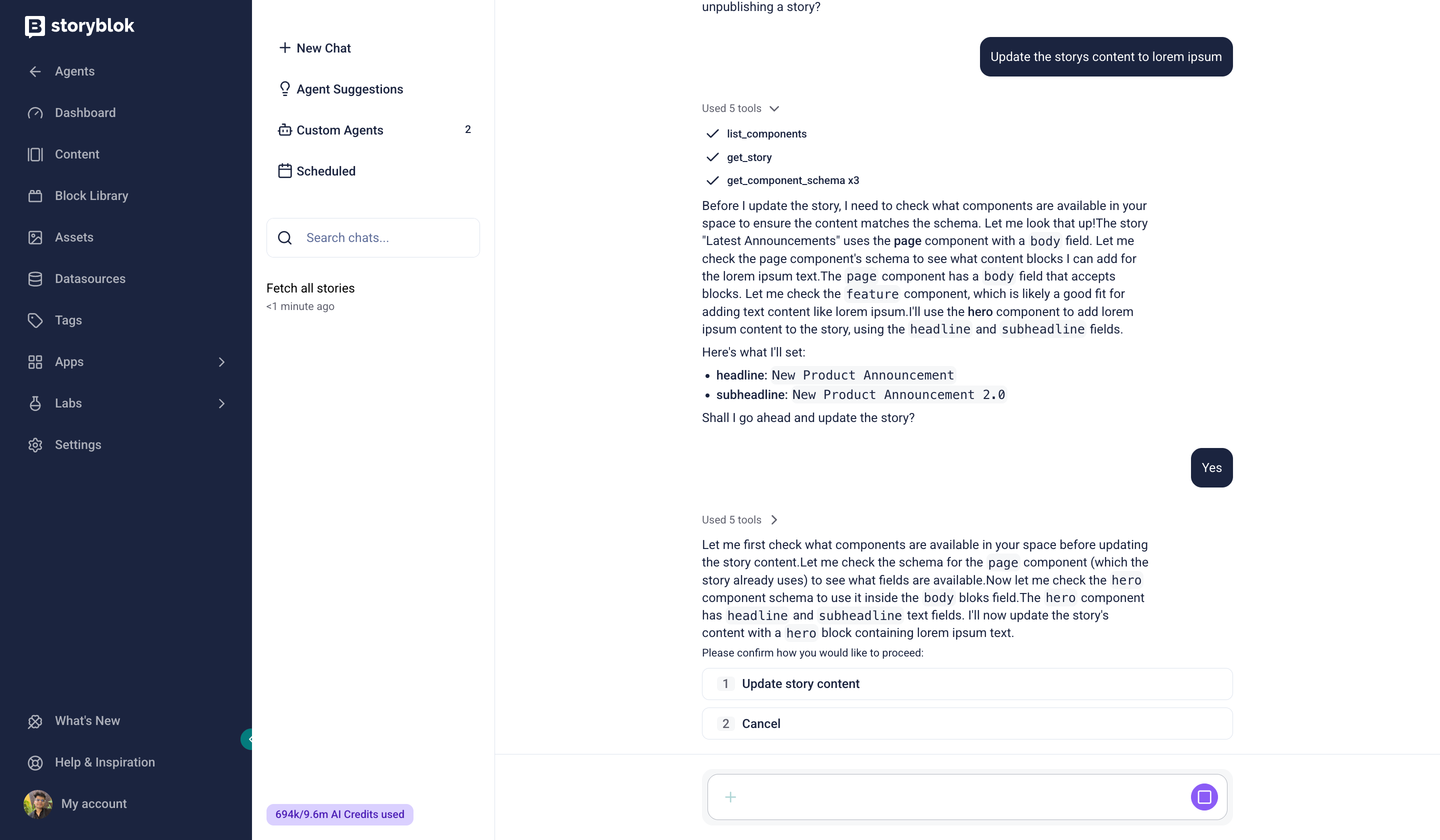
The agent requires manual confirmation
Because an agent acts on your behalf and with your permissions, any change it makes is attributed to you and appears in the space’s Activity feed.
Agents can only access a specific space's content, not other spaces or the web.
Specialized tools
Section titled “Specialized tools”Beyond the core tools, agents can run four checks on your content:
- Content health audit: scans the space for stale published pages, missing SEO titles and descriptions, images without alt text, and broken internal links.
- SEO check: reviews a story's meta title and description, heading structure, alt text, and schema.org markup.
- Link graph: shows which stories a story links to and which link back.
- Translation status: reports translation coverage per language configured in the space. This check is read-only. To create translations, use the Translate a story tool, which drafts translations and consumes AI Credits.
Start a chat
Section titled “Start a chat”To start a new chat, open Labs → Agents and select + New Chat.
To use a predefined prompt, select Agent Suggestions or choose an option from the Quick actions menu (the + in the chat message box).
Once you send a message, the agent streams its reply. Afterward, it may offer suggested follow-up actions as buttons. While the agent replies, the Send button changes into a Stop button that pauses the reply.
Agents consume AI Credits, and the usage appears in the sidebar. Storyblok hides the usage counter when the space uses a custom AI customization.
Predefined system prompts
Section titled “Predefined system prompts”Storyblok includes a collection of ready-made system prompts available under Agent Suggestions or Quick actions.
Agent suggestions
Section titled “Agent suggestions”To browse the list of prompts, select Agent Suggestions, then choose a suggestion to load it into a new chat, where you can run or edit it. You can search or filter the list by category.
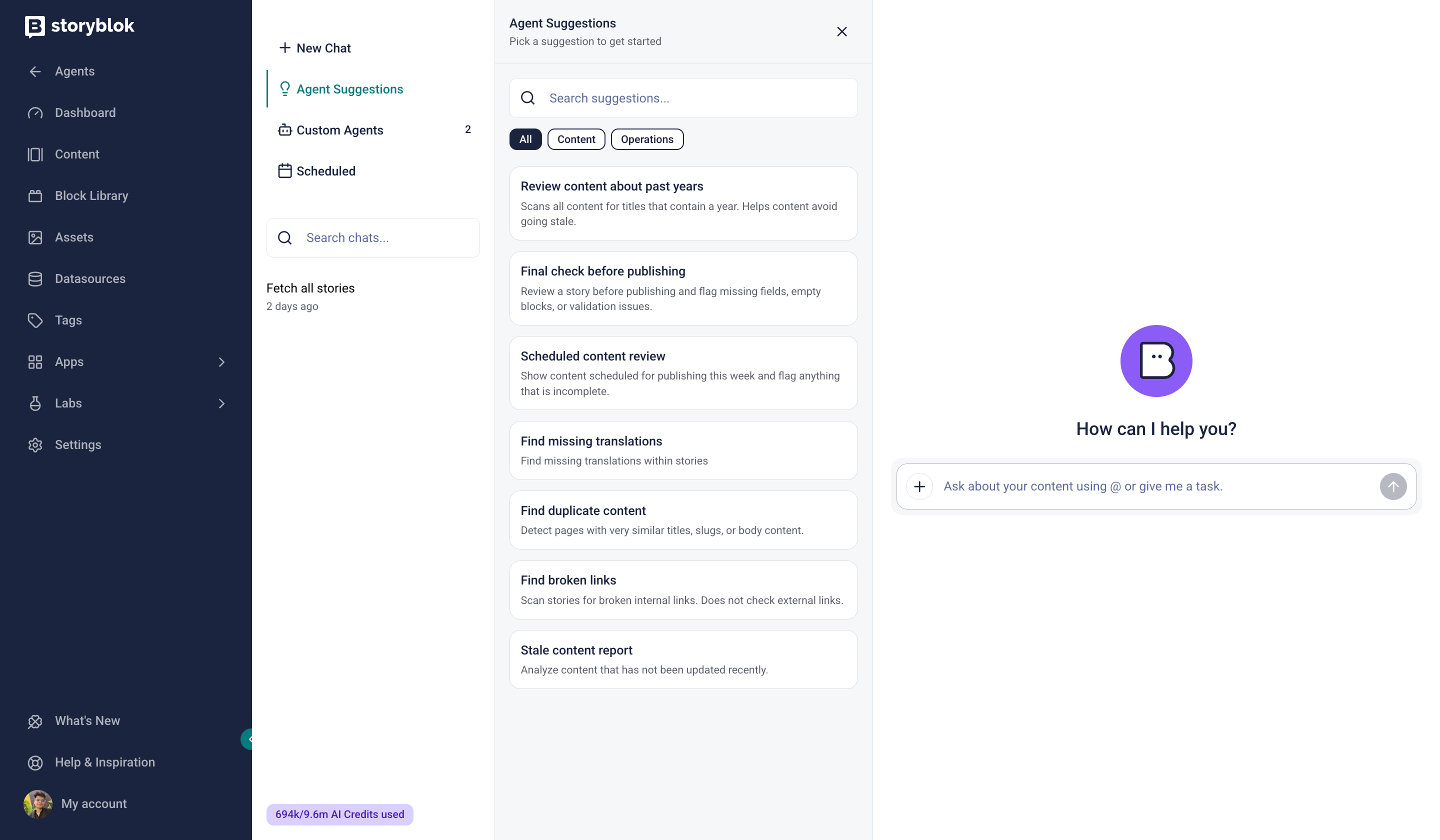
Agent Suggestions with a list of predefined prompts
Quick actions
Section titled “Quick actions”Some suggestions are available as Quick actions. Select + in the chat box, choose an action from the list, and run it.
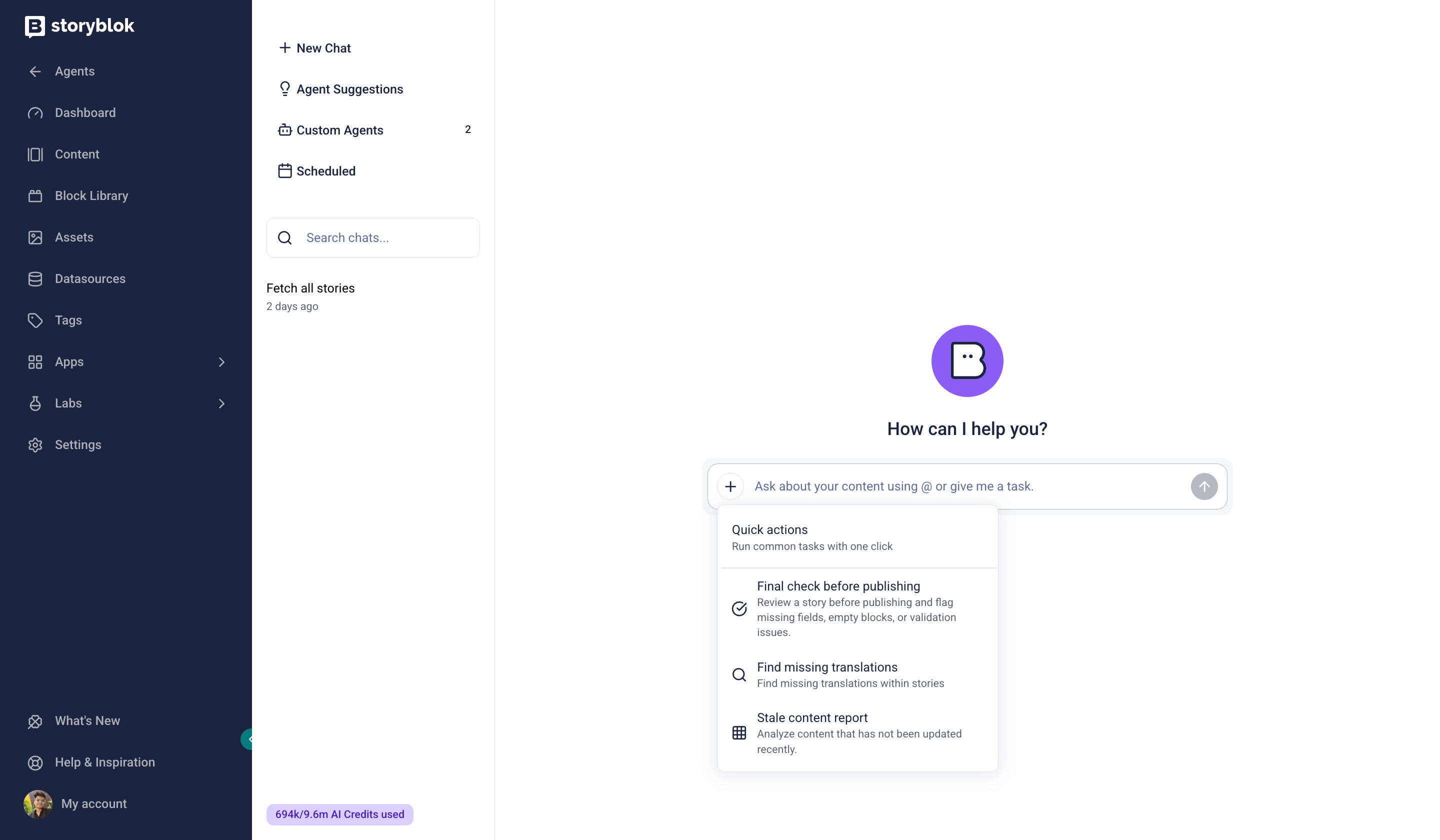
Access Quick Actions from the chat box
Custom agents
Section titled “Custom agents”Create custom agents to save a reusable prompt with its own instructions so you can rerun, schedule, and share with space users. These instructions define the agent's behavior (how it works and the rules it follows) and apply to every run.
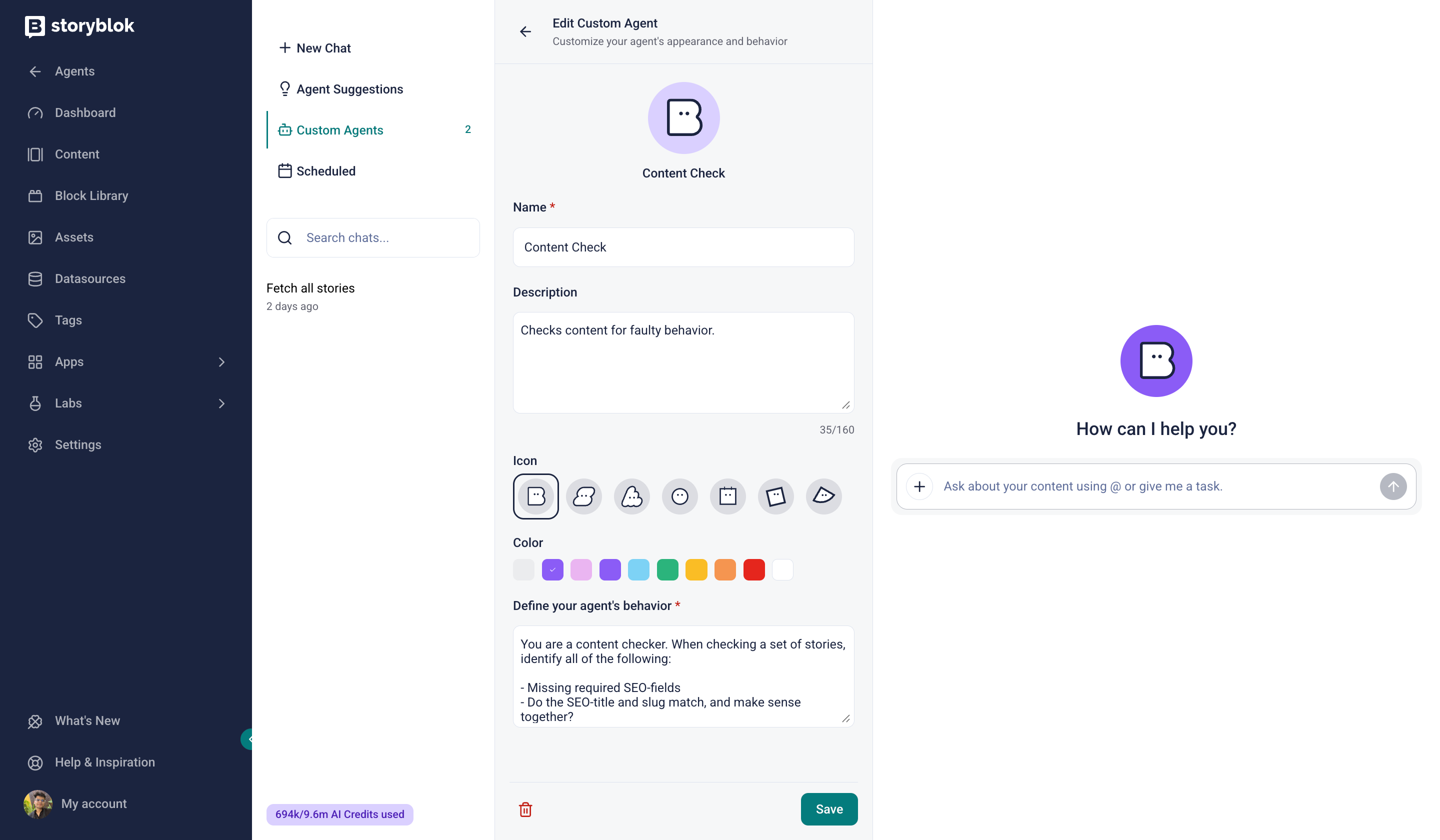
Create custom prompts
To create a custom agent, open Custom Agents and select New Agent. Input a Name and an optional Description, and choose an Icon and Color.
Next, in Define your agent's behavior, write the instructions the agent should follow whenever it runs, and Save.
The agent appears in the Custom Agents list, ready to run or schedule.
Scheduled tasks
Section titled “Scheduled tasks”Scheduled tasks run a custom agent automatically. For example, set a Translator Agent assigned to translate content while preserving its meaning, tone, and formatting to run every day with the prompt “Translate any new or updated event pages into German.”
The behavior stays the same on every run; the prompt instructs the agent which stories to translate that day.
To schedule an agent, follow these steps:
- Open Scheduled and select Schedule Agent.
- Choose the agent to run.
- Name the task and add a prompt: the specific task the agent runs each time, applied to its custom behavior.
- Set the frequency (Daily, Weekly, or Interval), Time, and Time zone.
- Select Active to enable or disable the task.
- Choose Schedule Agent to save.
Each scheduled task shows its frequency, activation status, and latest run.
Manage your chat history
Section titled “Manage your chat history”Find a list of your recent conversations in the sidebar. To delete a conversation, open its menu and select Delete.
Storyblok automatically archives conversations after 30 days of inactivity, and you can't access an archived conversation.
Was this page helpful?
This site uses reCAPTCHA and Google's Privacy Policy (opens in a new window).Terms of Service (opens in a new window) apply.
Get in touch with the Storyblok community