

Environments
Environments are sandbox spaces that let you test changes in isolation, before deploying to the main production space. Use environments to securely test AI tools, set up automation, change block definitions, and adjust configurations.
Create an environment
Section titled “Create an environment”In the main production space, open Settings → Environments, and select + New Environment.
Define the environment’s properties: enter a name and an optional description, choose a color for the environment switcher icon, and provide the Visual Editor preview URL.
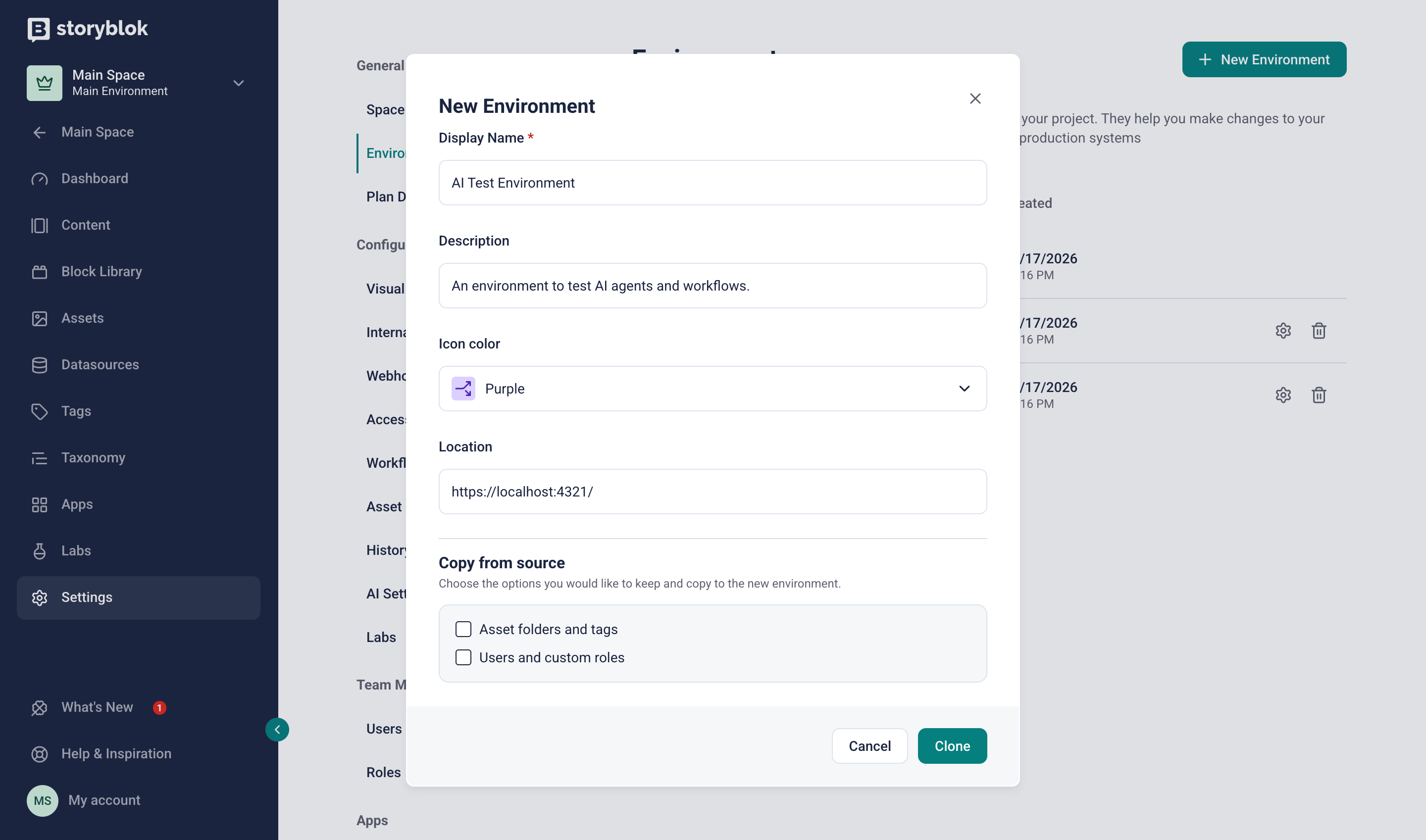
Configure a new environment
The new environment includes duplicated stories, blocks, and datasources. Under Copy from source, choose additional data to duplicate:
- Asset folders and tags: duplicate the folder structure and tags, not the asset files.
- Users and custom roles: duplicate roles and user access assignments.
Select Clone to create the environment.
Work inside an environment
Section titled “Work inside an environment”To switch between environments, select the relevant one from the environment switcher at the top of the sidebar. The first environment in the list is the main space, with all linked spaces below—each identified by its name and icon color.
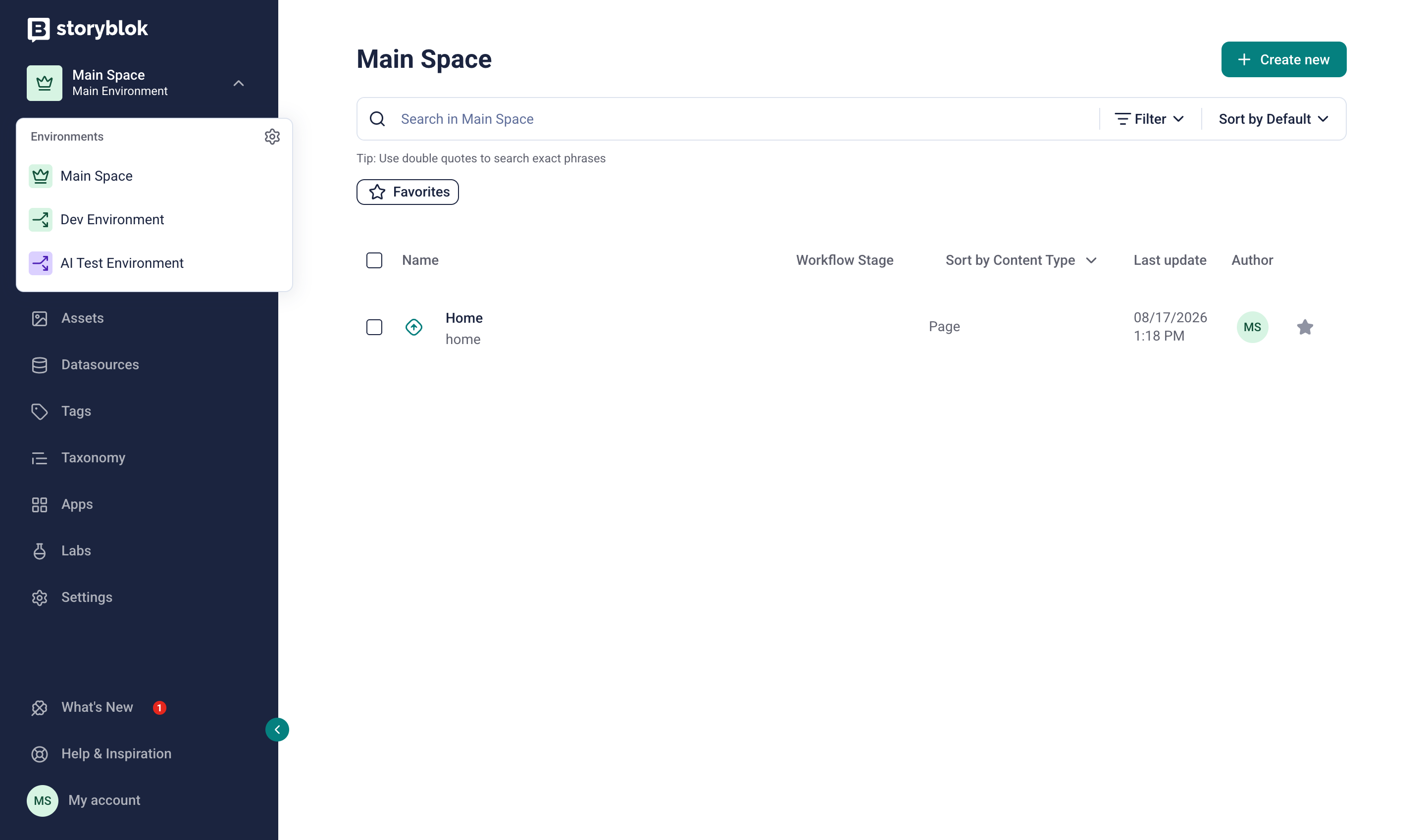
The environment switcher lists the main space and its linked environments.
Once inside an environment, you can edit stories in the Visual Editor, manage blocks, configure settings, and more.
Linked environments may support the same functionality as the main space, but each environment is an isolated space. Changes made in one environment don’t affect other linked spaces.
To synchronize changes between environments, use the Storyblok CLI. The CLI also lets you duplicate workflows, releases, pipelines, and other apps configurations.
Manage environments
Section titled “Manage environments”Create, view, edit, and delete linked environments from the main space’s Settings → Environments.
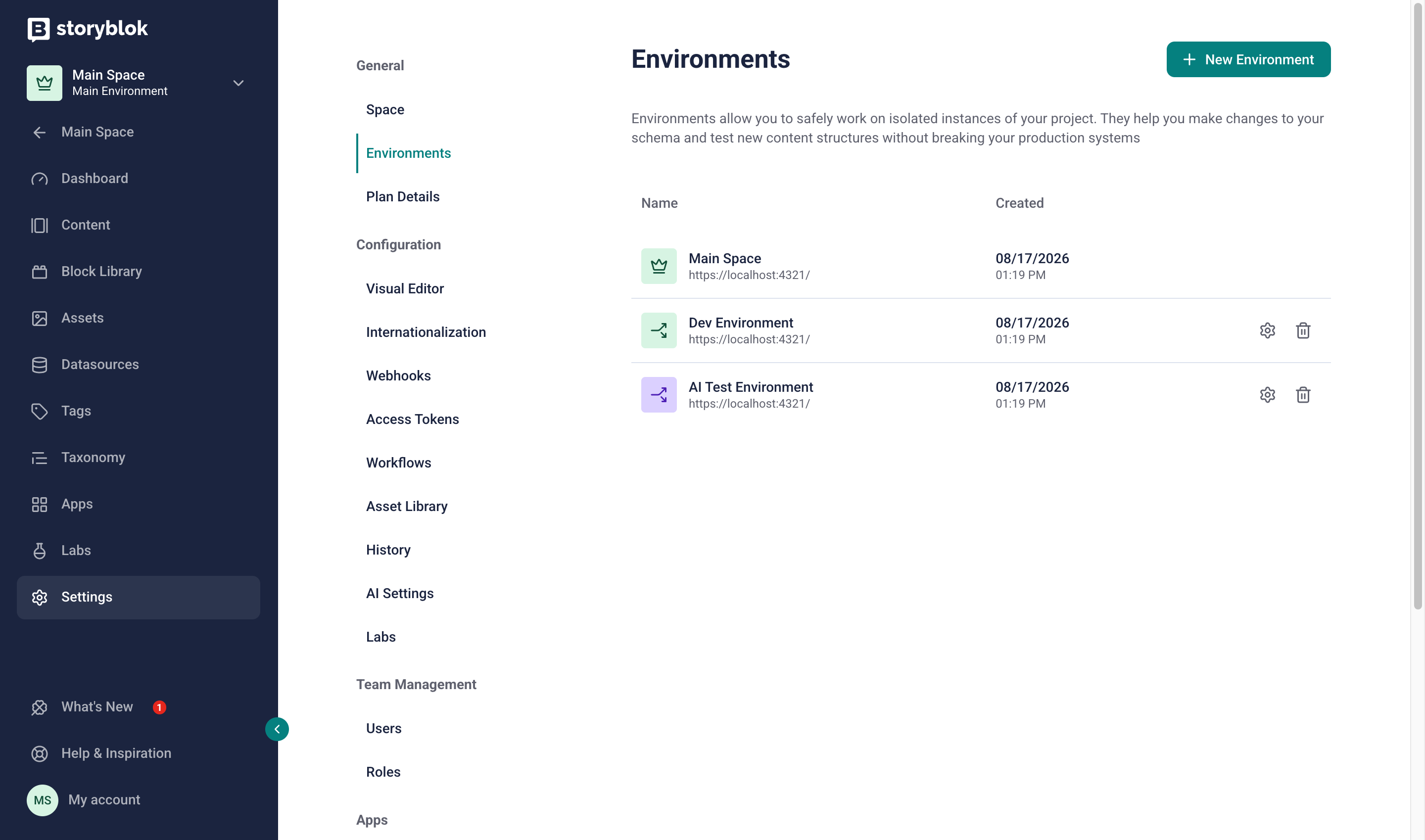
Manage environments from the main space’s settings.
Use scoped personal access tokens to manage permissions and limit access to specific resources in each environment.
Edit an environment
Section titled “Edit an environment”Select an environment from the list. In the Edit Environment popover, update the name, description, icon color, or location and Save.
Delete an environment
Section titled “Delete an environment”Select the Delete icon of the relevant environment. In the Delete Environment popover, type the environment name to confirm, and choose Delete.
Further resources
Section titled “Further resources”Was this page helpful?
This site uses reCAPTCHA and Google's Privacy Policy (opens in a new window).Terms of Service (opens in a new window) apply.
Get in touch with the Storyblok community