

AI Assistance
Storyblok's AI features assist with content creation and management needs, including translations, alt text, and SEO. Admins can enable AI features at either the space level or the organization level by going to Settings → AI Settings.
AI translations
Section titled “AI translations”AI translations let editors generate machine-based translations of content in dozens of languages.
AI alt text
Section titled “AI alt text”AI alt text generates accessibility text for images in the Storyblok asset manager. To generate alt text, select Generate Alt Text in the asset uploader.
You can also generate alt text in languages other than English. To do so, ensure that the language is configured in your space's internationalization settings and that the Alt text field is marked as translatable in your asset library.
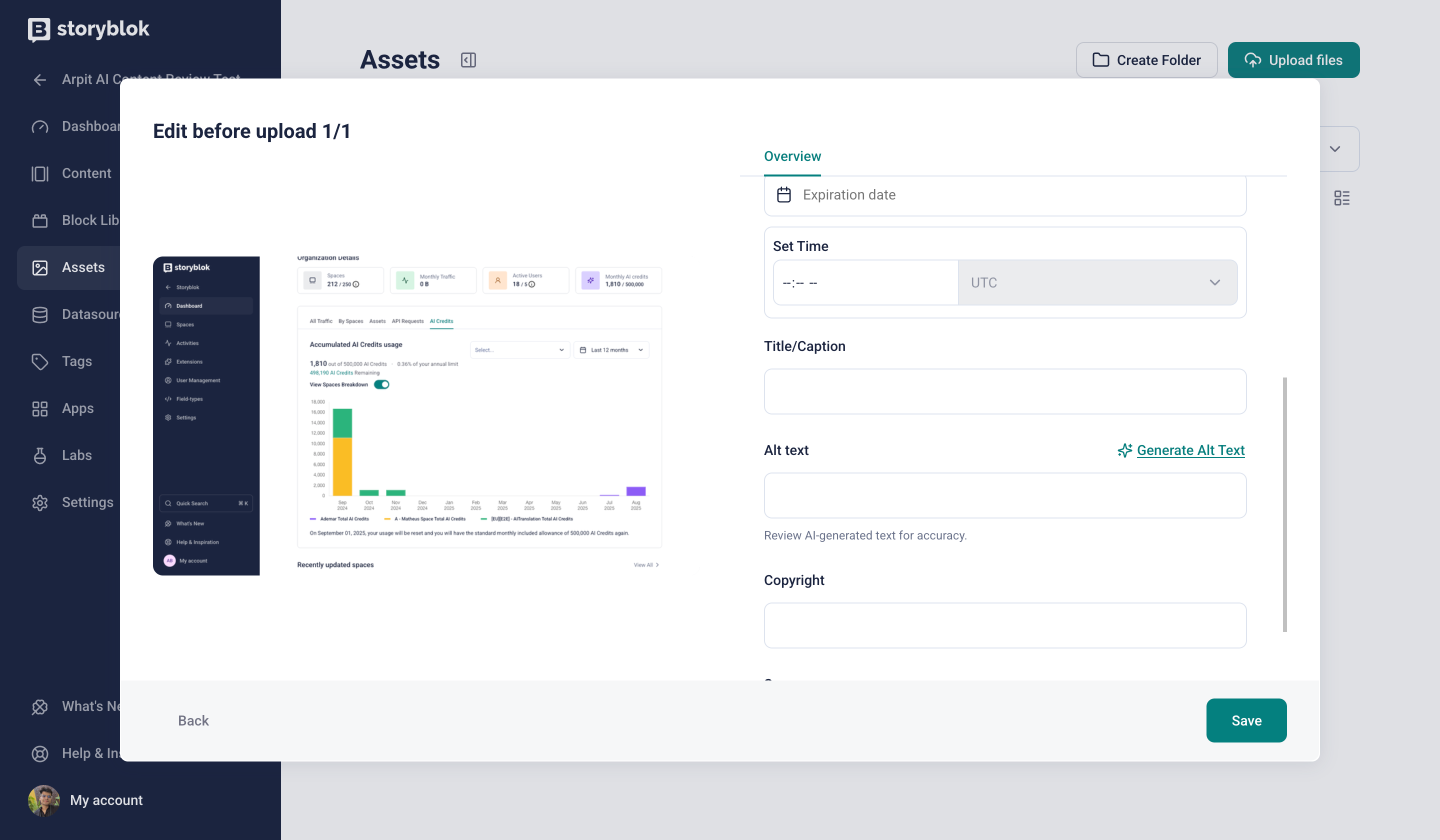
AI Alt Text Generation in Asset Upload Modal
AI ideation
Section titled “AI ideation”Storyblok’s Ideation Room enables drafting and improving potential articles. You can use AI features in the Ideation Room to create new content and enhance existing content.
AI SEO
Section titled “AI SEO”The AI SEO app helps you generate SEO tags for your application using AI.
AI customization
Section titled “AI customization”AI customization allows you to customize your API integration by using your own credentials, choosing your preferred model, and adding fine-grained configurations. Admins can apply customizations at the space or organization level.
The following AI providers and corresponding models are available for use:
AI Provider | Supported Models |
OpenAI | gpt-4o, gpt-5, gpt-5.1, gpt-5-mini, gpt-5-nano |
Google Gemini | gemini-2.5-flash, gemini-2.5-pro, gemini-3.5-flash |
Anthropic Claude | claude-opus-4-6, claude-sonnet-4-6, claude-haiku-4-5 |
Spaces
Section titled “Spaces”In your space settings, open AI Settings and select your AI Setup.
To apply organization-level settings to the space, toggle the Inherit the Org-level configuration option.
To apply space-level settings, select an AI setup from the AI setup dropdown or create a new setup.
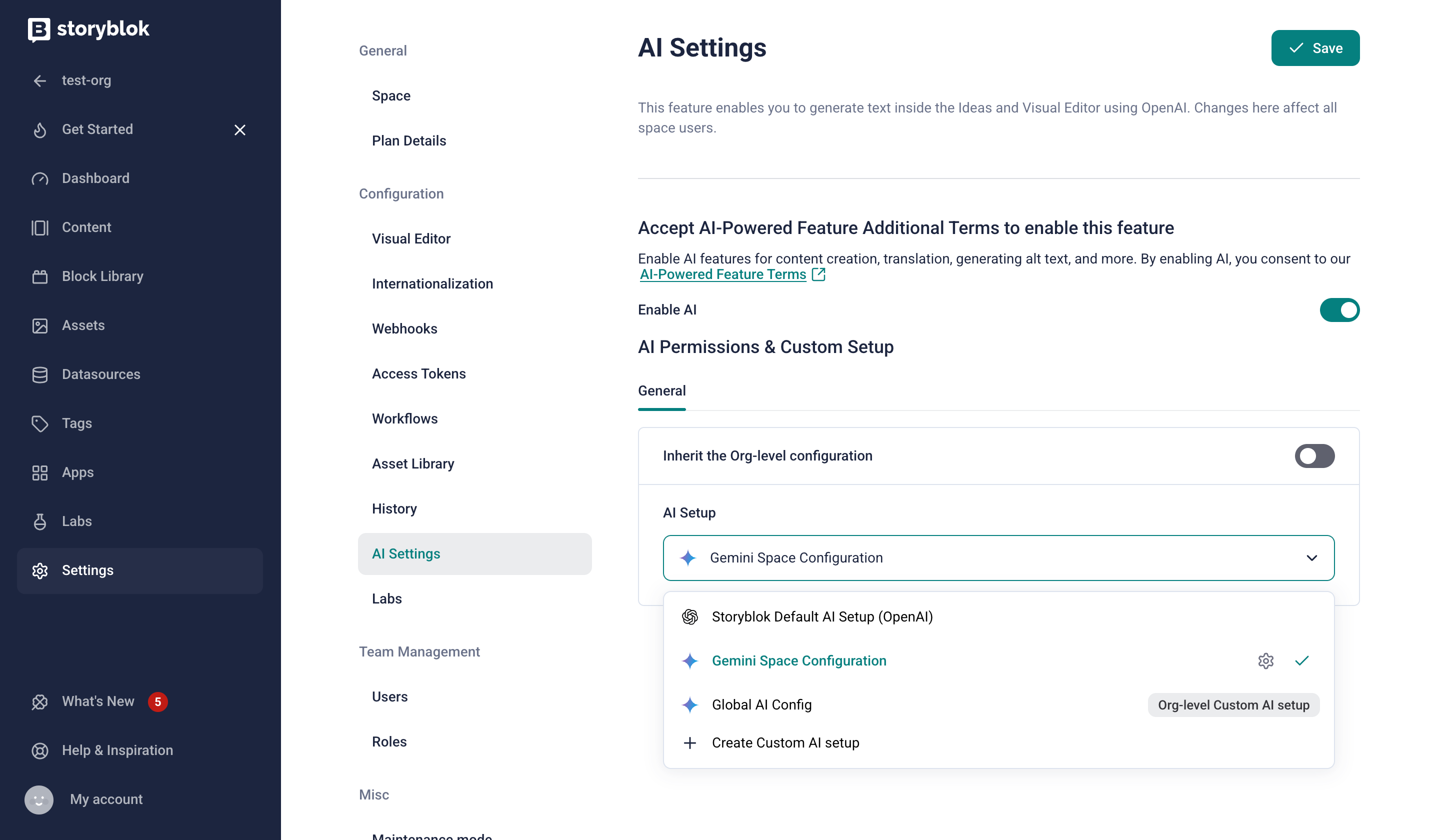
AI Settings Configuration Page
In the panel, select your AI provider and model, and enter your API credentials.
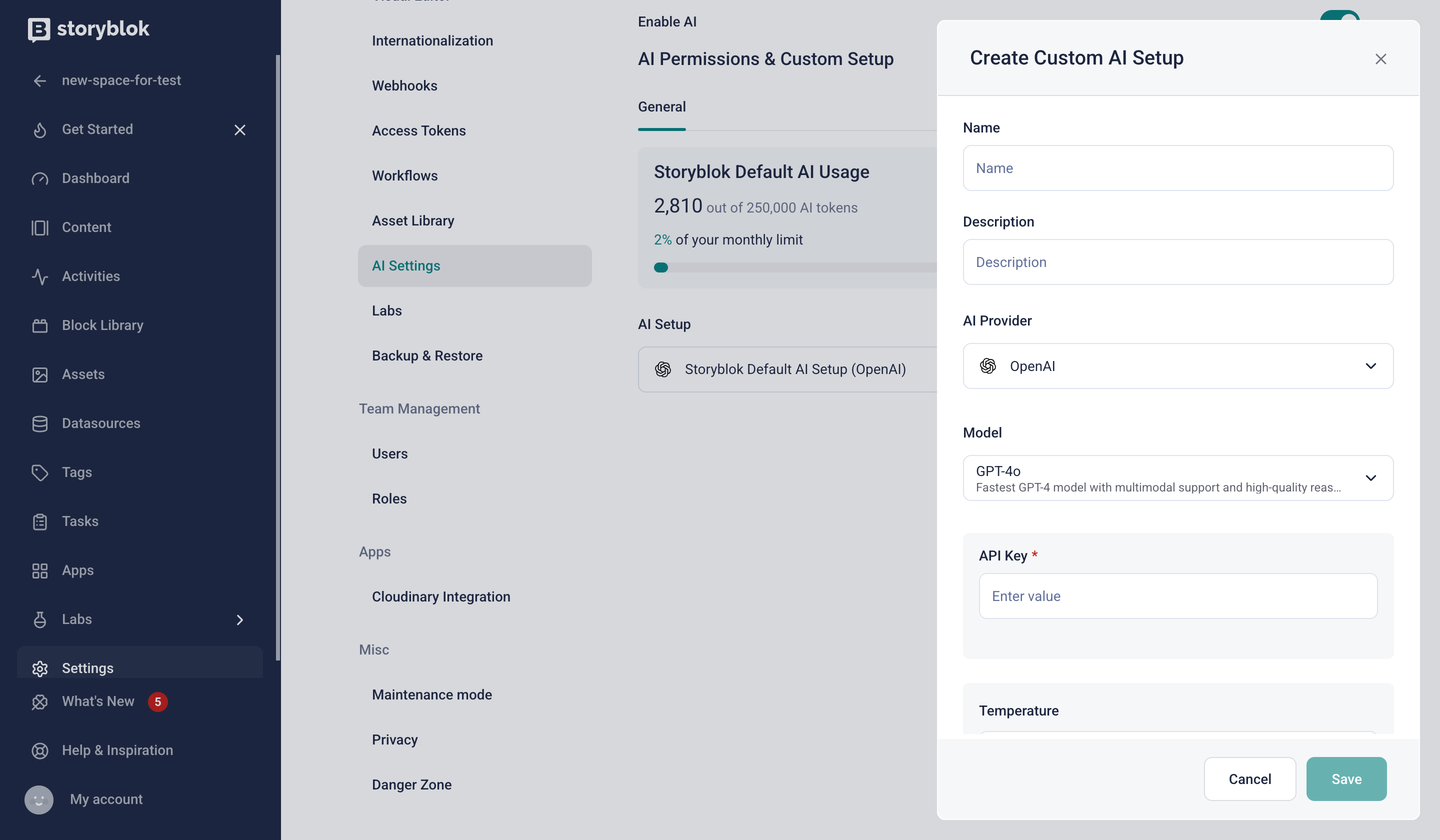
AI Provider and Model Selection Panel
Adjust AI behavior by adjusting generation settings like temperature, top-p, and stop sequences to control how the AI responds. Click Run Validation to test the connection, then Save.
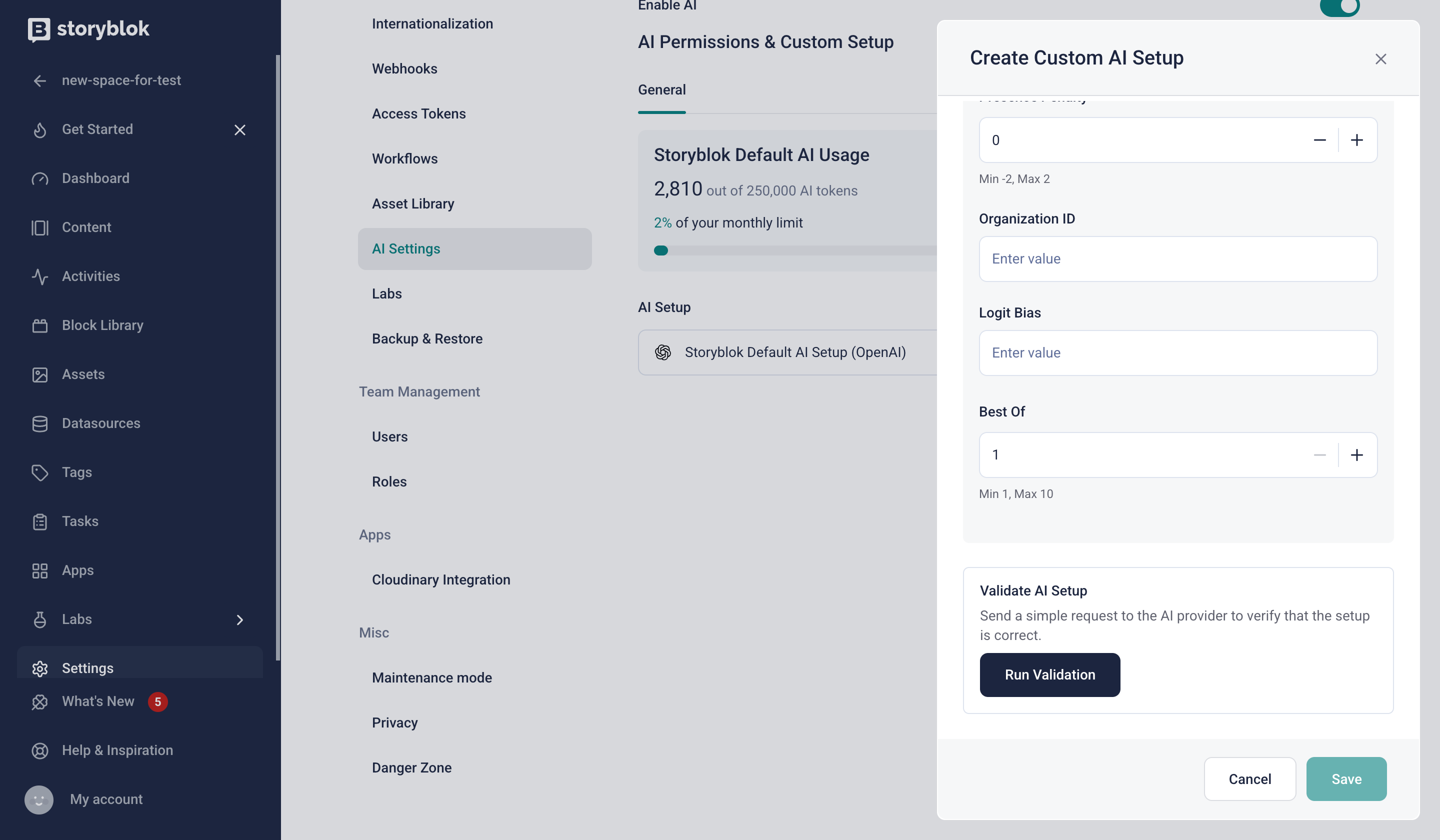
AI Configuration Validation Testing
Organizations
Section titled “Organizations”To create a custom AI provider at the organization level, open Settings → AI Settings.
Select an existing option from the AI Setup dropdown, or click Create Custom AI setup to create a new one.
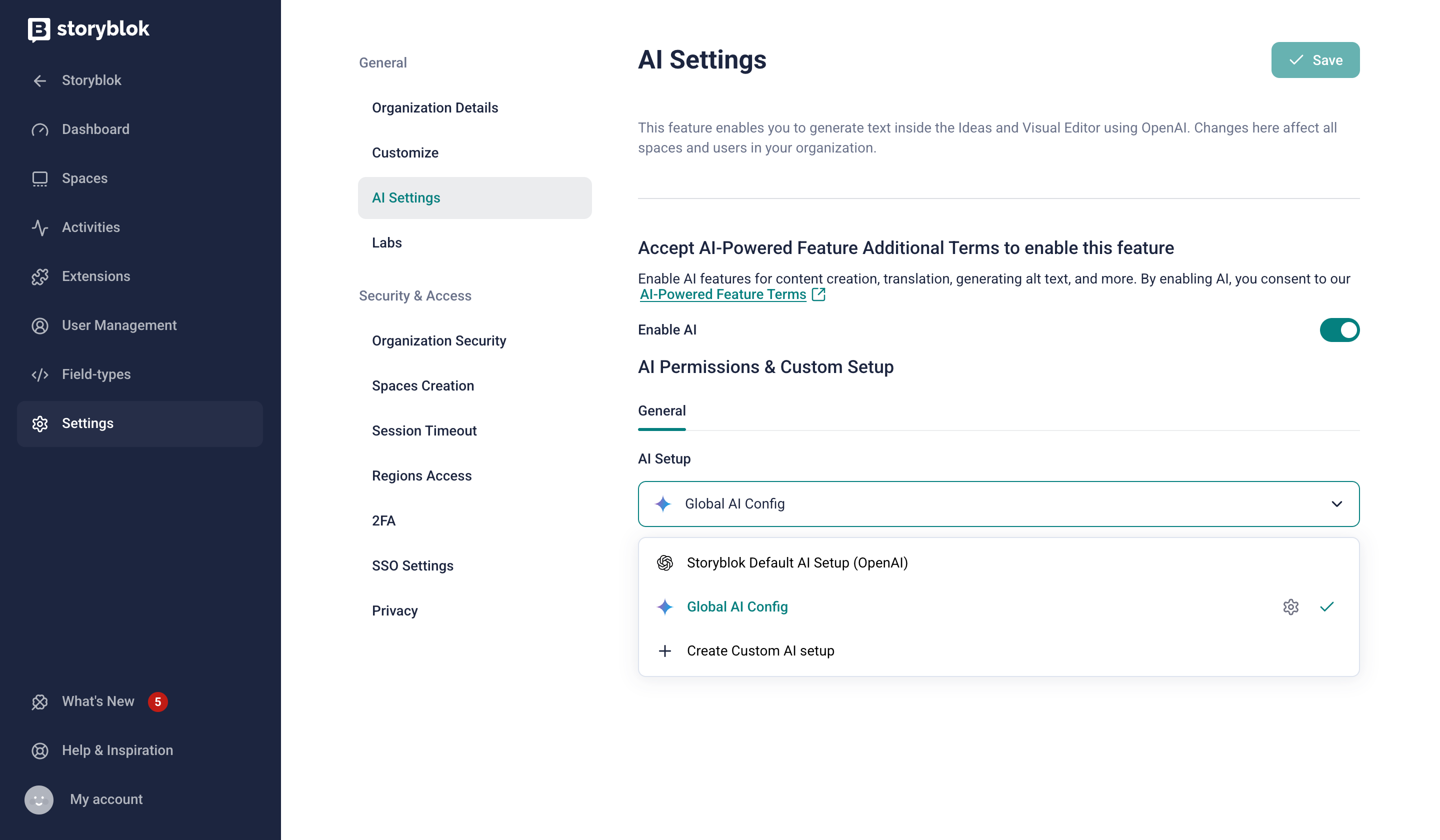
Organization-Level AI Customization Settings
In the panel, provide the relevant information and Save to make it available across all organization spaces.
AI Branding
Section titled “AI Branding”AI Branding provides style customizations for AI output.
Context
Section titled “Context”To supply context, open the Branding tab in AI Settings. The context allows you to define your industry, product, audience, and voice.
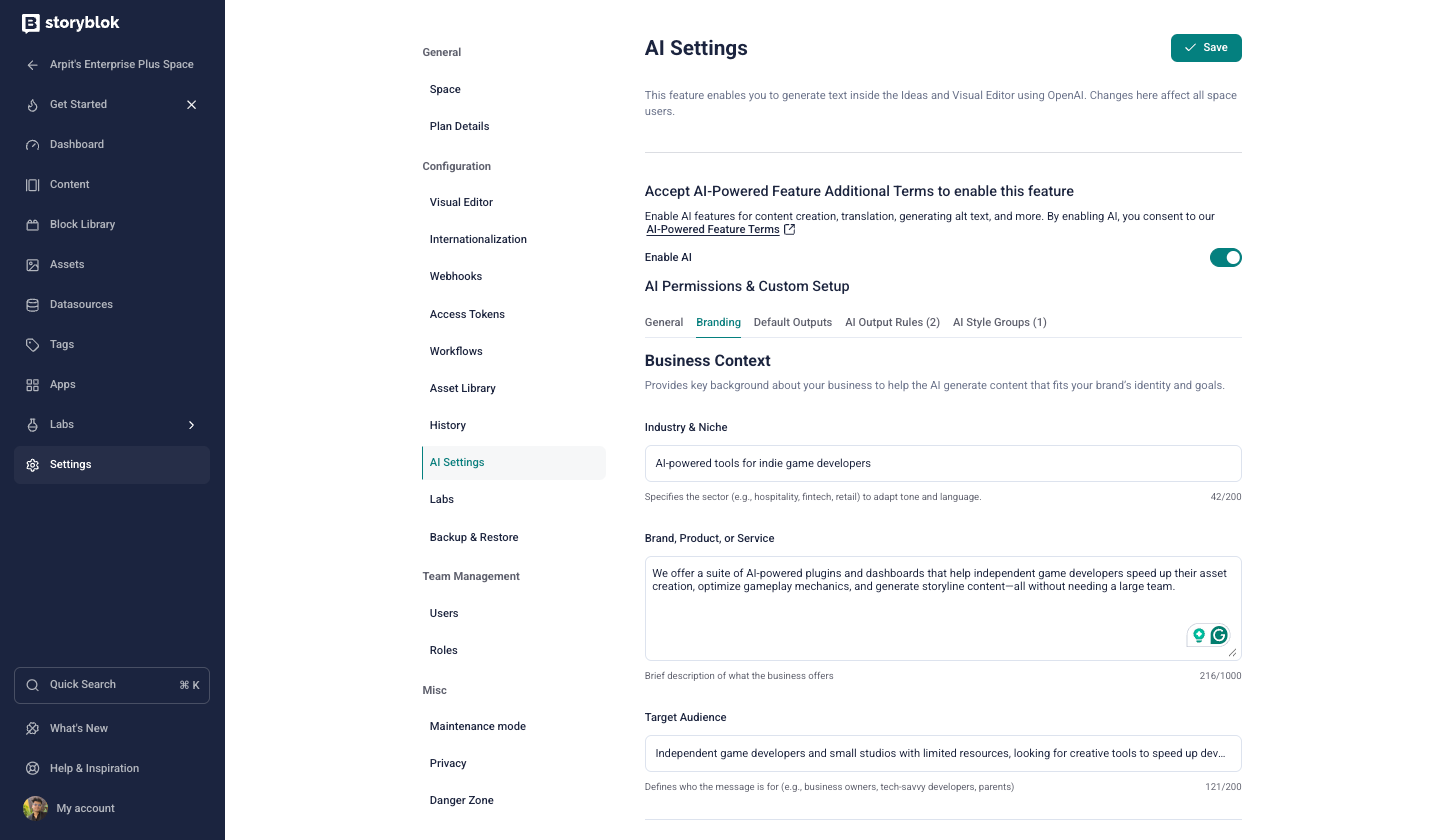
AI Branding Configuration for Spaces
Output rules
Section titled “Output rules”AI Output Rules are the basic building blocks for configuring AI Branding at a granular level. These rules are defined in natural language and provide specific instructions for how the AI should generate or format content.
Some examples of AI output rules:
- “Avoid pronouns in the first sentence of a paragraph.”
- “Always write the brand name 'Storyblok' in camel case, italic, and bold.”
To create a new rule in a space, open AI Settings → AI Permissions and Custom Setup → AI Output Rules and click Add new rule.
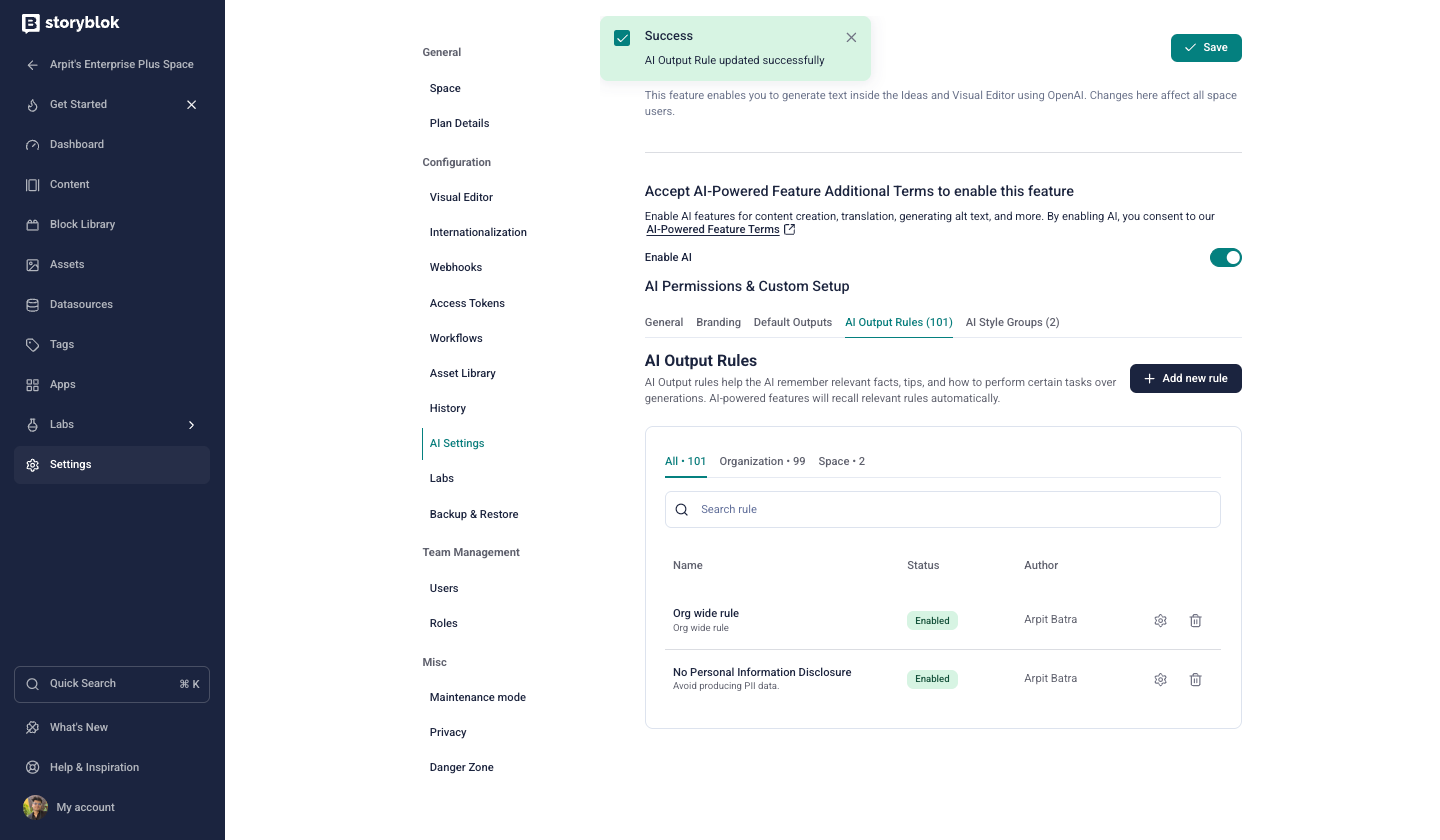
AI Output Rules Management
Add the name and instructions for your rule. Optionally, select the style groups to which to add this rule.
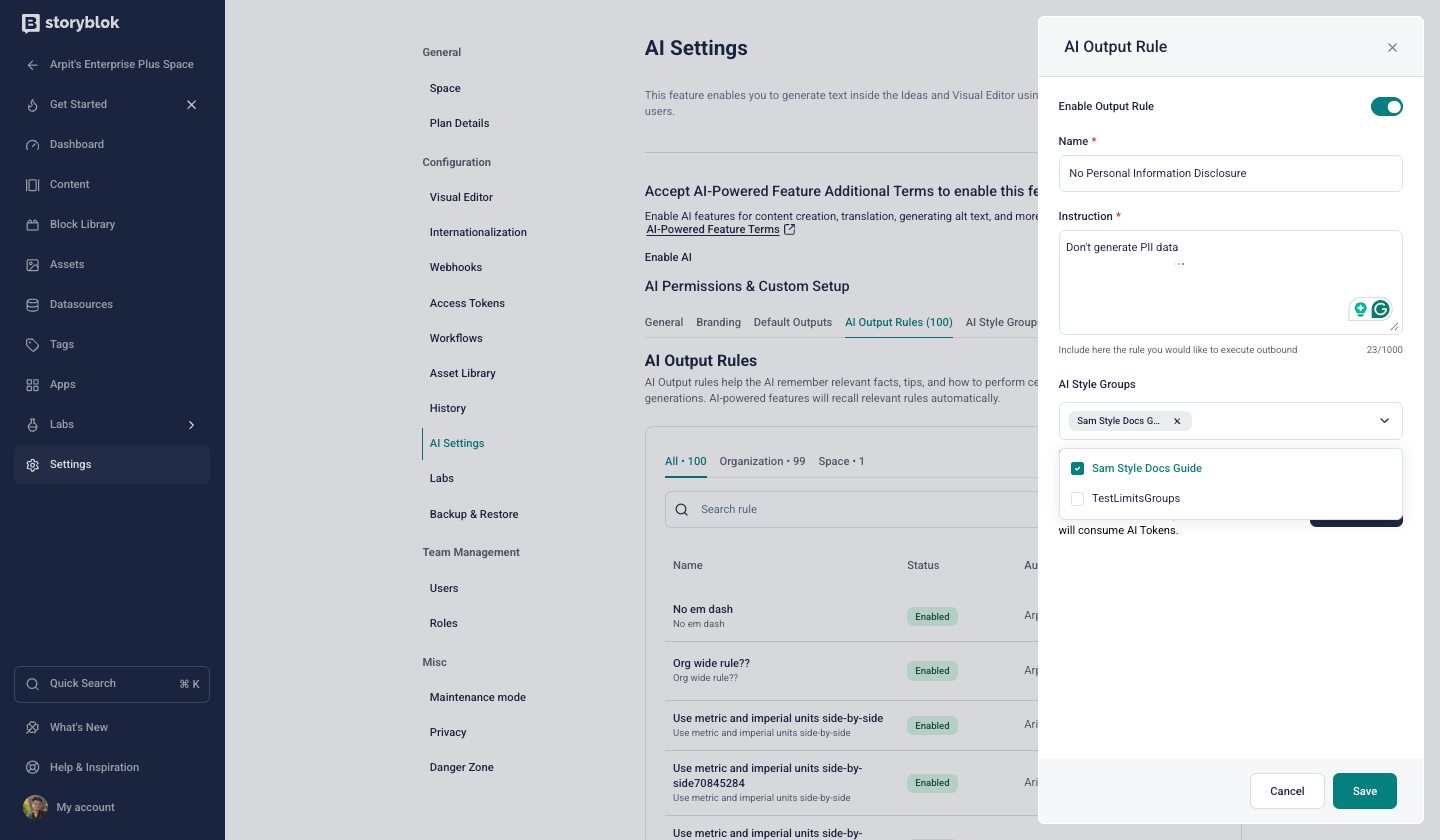
Creating a New AI Output Rule
Style groups
Section titled “Style groups”An AI style group is a collection of AI output rules. A style group can contain multiple output rules, and an output rule can be a part of multiple style groups. An AI style group is what ultimately affects the output of the AI when you apply it on the organization or space level.
An example of an AI style group could be “Internal HR compliance”, and it might contain multiple output rules, such as:
- Don't use emojis.
- Use gender-neutral language.
To create a new group, open AI Settings → AI Permissions and Custom Setup → AI Style Groups, click Add new style group, and select output rules for the group.
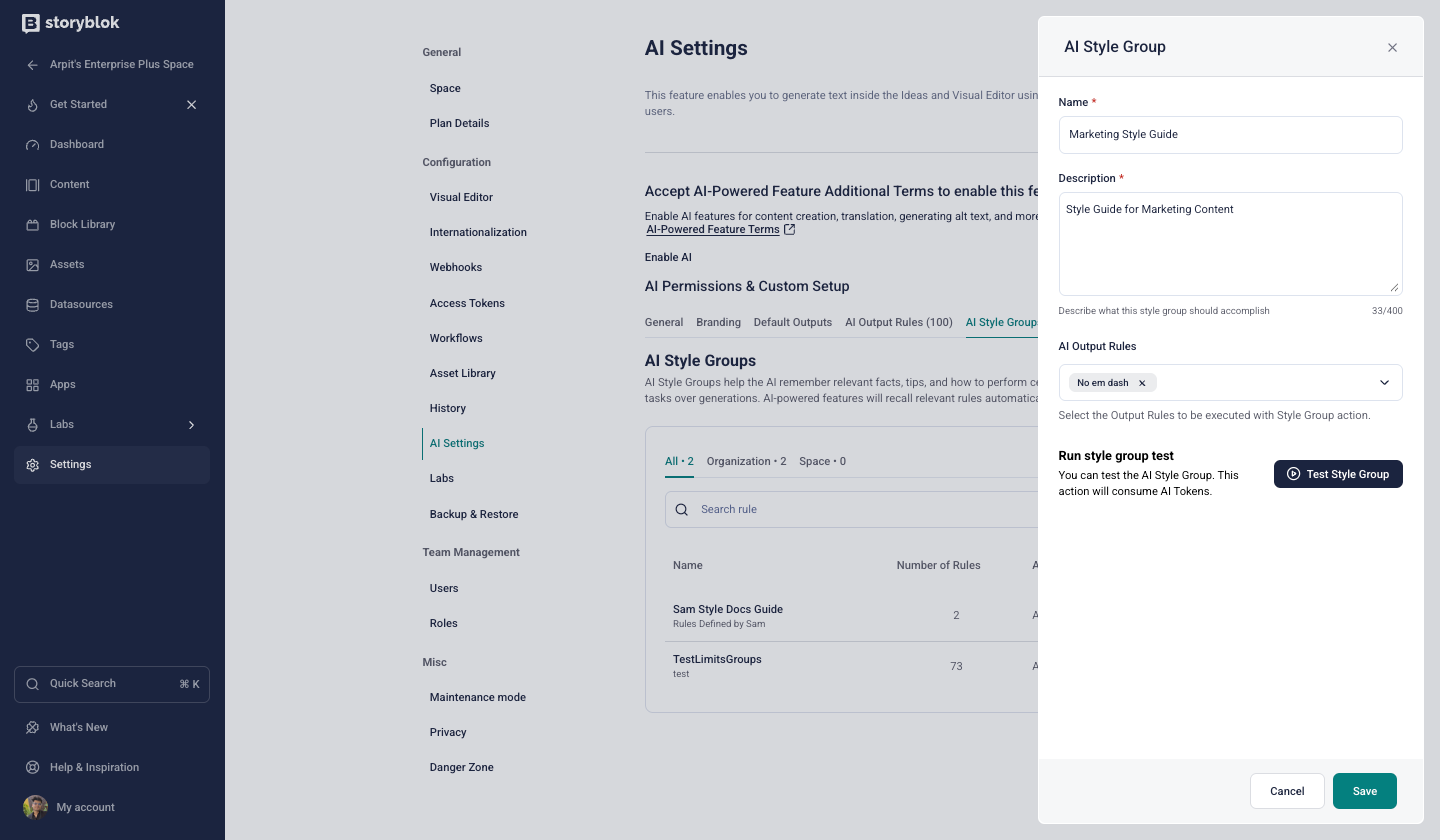
Create AI Style Group in a Space
Organization defaults
Section titled “Organization defaults”Admins can govern AI Branding at the organization level from the organization settings. Organizations can define default style groups, restrict the creation of style groups at the space level, and determine behavior when style groups exist at both the space- and organization-level.
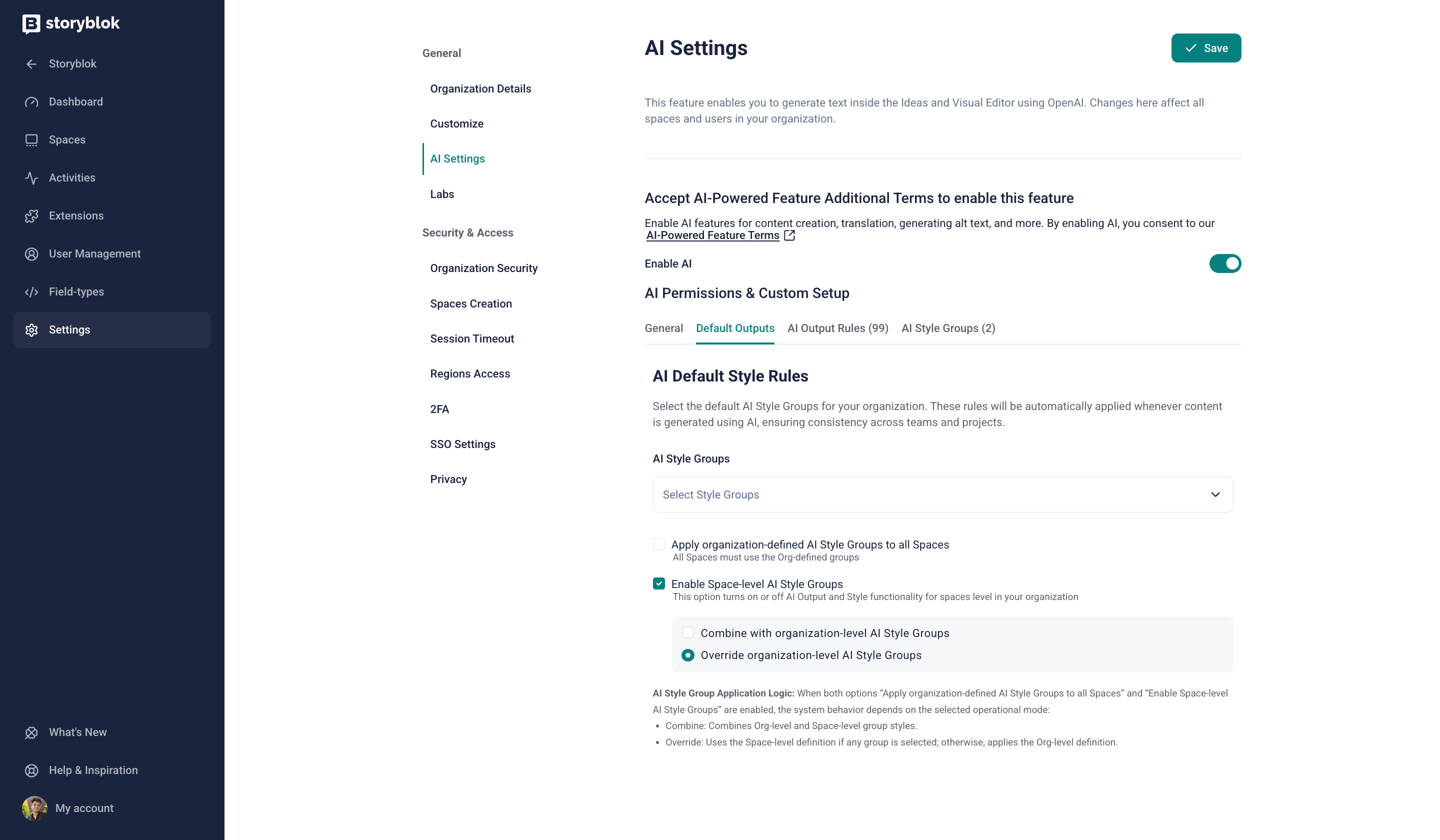
Set up Default Style Groups for the Organization
AI Credits
Section titled “AI Credits”Usage of Storyblok's AI features consumes AI credits. The number of initial AI credits available per space depends on your pricing plan. Refer to the AI credits explainer and the pricing page for additional information.
AI credits are different from AI tokens. Tokens in the context of LLM are units of text in queries and their responses, while AI credits in Storyblok are a multiple of the token cost per query. Each AI action consumes a specific number of credits, determined by the underlying token cost and the model used. Read more about tokens in this OpenAI FAQ.
Consumption Metrics
Section titled “Consumption Metrics”You can check the space dashboard for an overview of your remaining AI credits in your space, as well as a weekly and monthly breakdown of your usage.
The Organization dashboard offers a summary of the monthly AI credits available and details AI credit usage across different spaces within the organization.
Usage History
Section titled “Usage History”In Organization → Settings → AI Settings, use the View Usage History button to see a breakdown of your AI credits consumption history. You can choose a time period and filter by provider, feature, user, and space.
Was this page helpful?
This site uses reCAPTCHA and Google's Privacy Policy (opens in a new window).Terms of Service (opens in a new window) apply.
Get in touch with the Storyblok community