

AI Settings
Storyblok’s AI features help you create and manage content, including drafting, translations, alt text, and SEO.
To use AI, open the space or organization Settings → AI Settings, and select Enable AI.
Supported providers
Section titled “Supported providers”The AI setup determines which provider and model Storyblok’s AI features use. There are two kinds of setup options:
- Default setups: GPT by OpenAI, Gemini by Google, and Claude by Anthropic come with Storyblok and use your AI credits.
- Custom setups: use your own provider account and API key.
Admins can assign a setup to the whole organization or to a single space.
The following AI providers and models are available:
AI provider | Default setup | Custom setup |
|---|---|---|
OpenAI |
| Same as default |
Google Gemini |
| Default models and |
Anthropic |
| Default models, |
Organization-level setup
Section titled “Organization-level setup”In your organization, open Settings → AI Settings → General. Select a default setup from AI Setup, or select Create Custom AI setup and follow the steps in Create a custom AI setup.
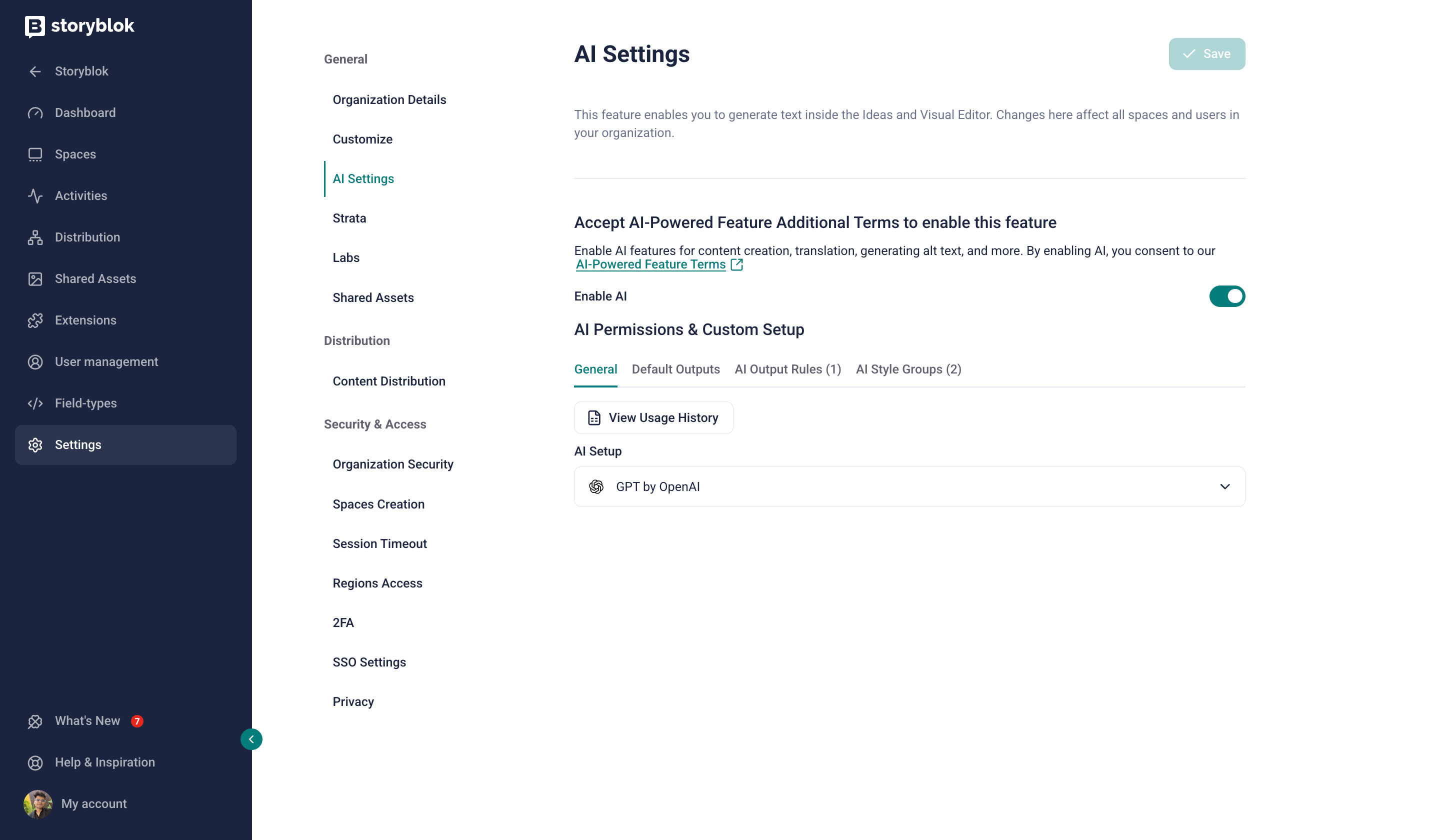
Organization AI settings
Custom setups you create here are available in every space in the organization, labeled Org-level Custom AI setup.
Space-level setup
Section titled “Space-level setup”In your space, open Settings → AI Settings → General.
To use the organization’s setup, select Inherit the Org-level configuration.
Otherwise, choose an AI Setup option:
- GPT by OpenAI, Gemini by Google, or Claude by Anthropic: default setups. To change the model, select the settings icon next to the setup.
- Setups labeled Org-level Custom AI setup: custom setups created in the organization settings.
- Create Custom AI setup: a custom setup for this space only.
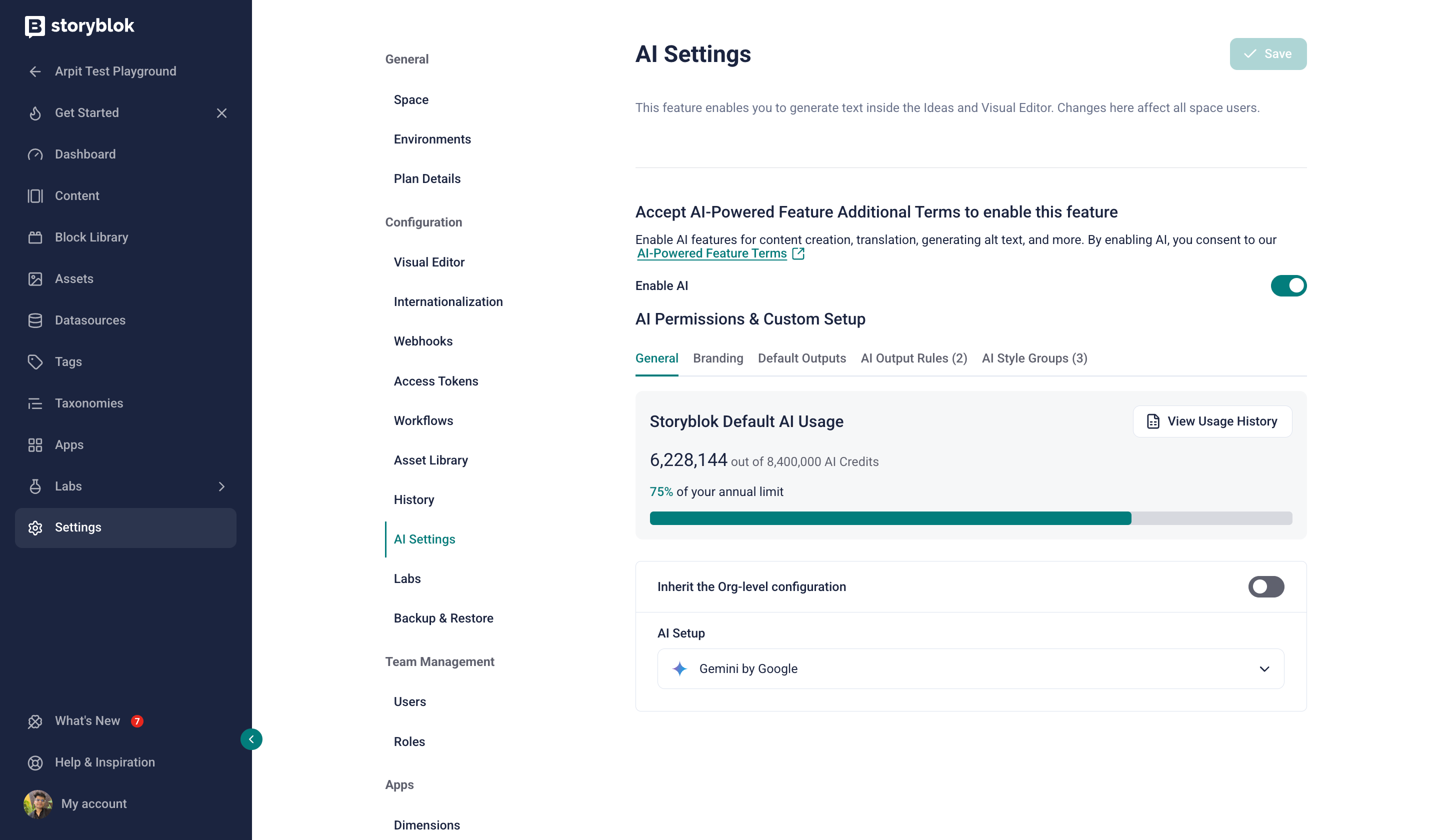
Space AI settings
Create a custom AI setup
Section titled “Create a custom AI setup”In the Create Custom AI Setup panel:
- Enter a Name and, optionally, a Description.
- Select the AI Provider and Model.
- Enter your API Key.
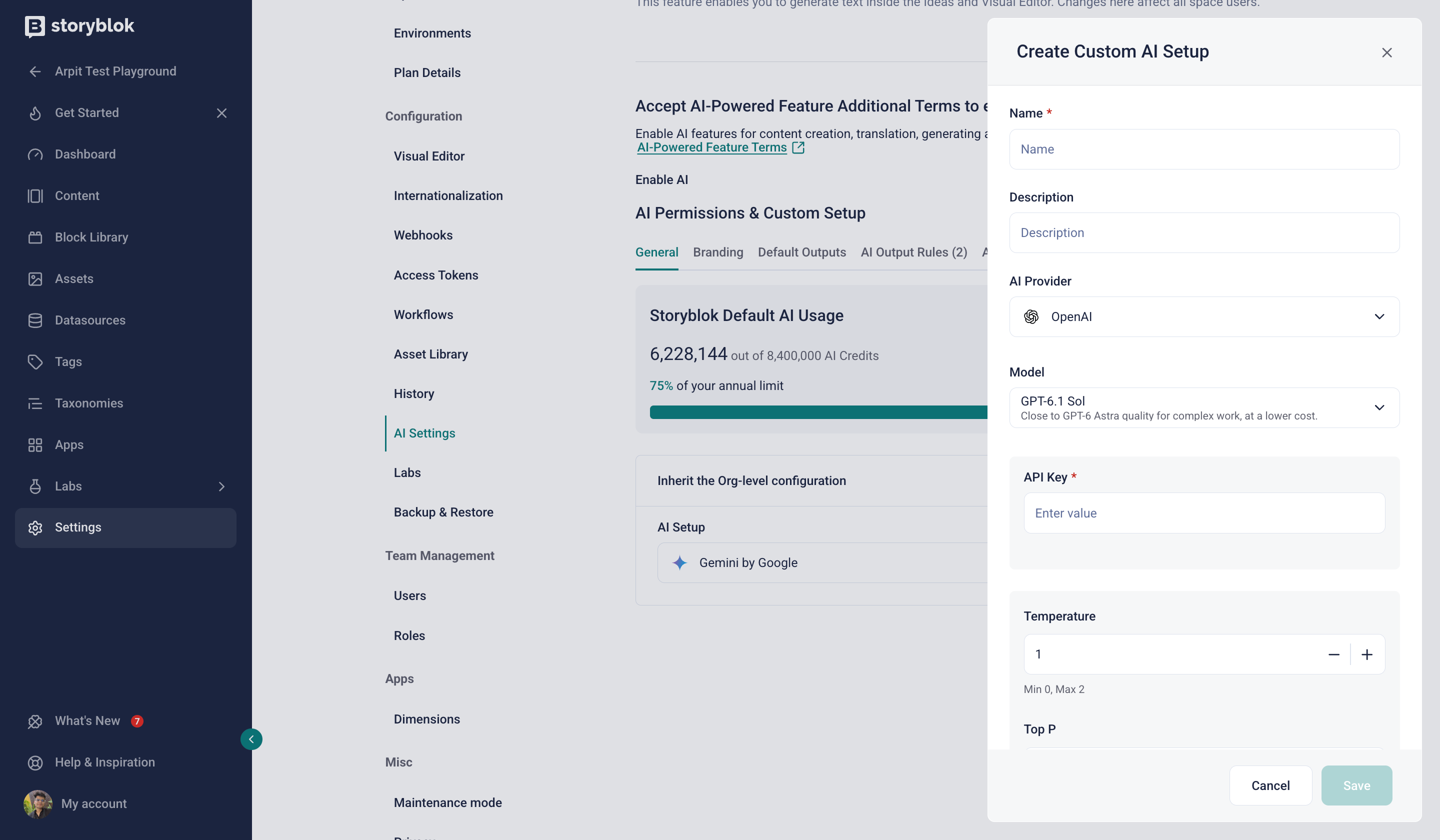
AI provider and model selection
To control how the AI responds, adjust the model’s generation settings, including Temperature, Max Tokens, and more. Some models don’t support every setting.
Under Validate AI Setup, select Run Validation to check that the setup works.
Select Save.
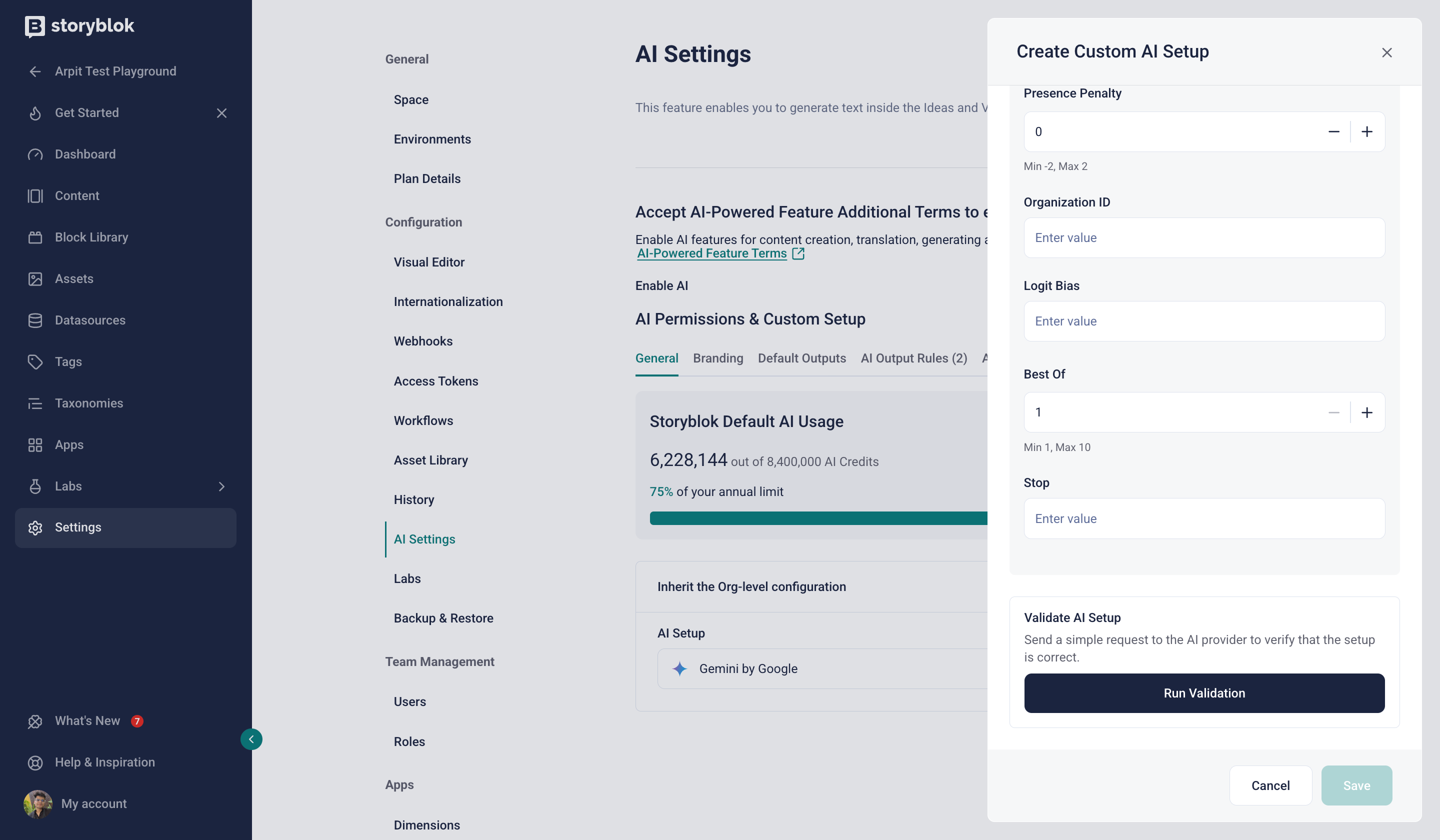
Generation settings and validation
AI branding
Section titled “AI branding”AI branding lets you define the AI output for your space. Open Settings → AI Settings → Branding and provide your brand’s style guide.
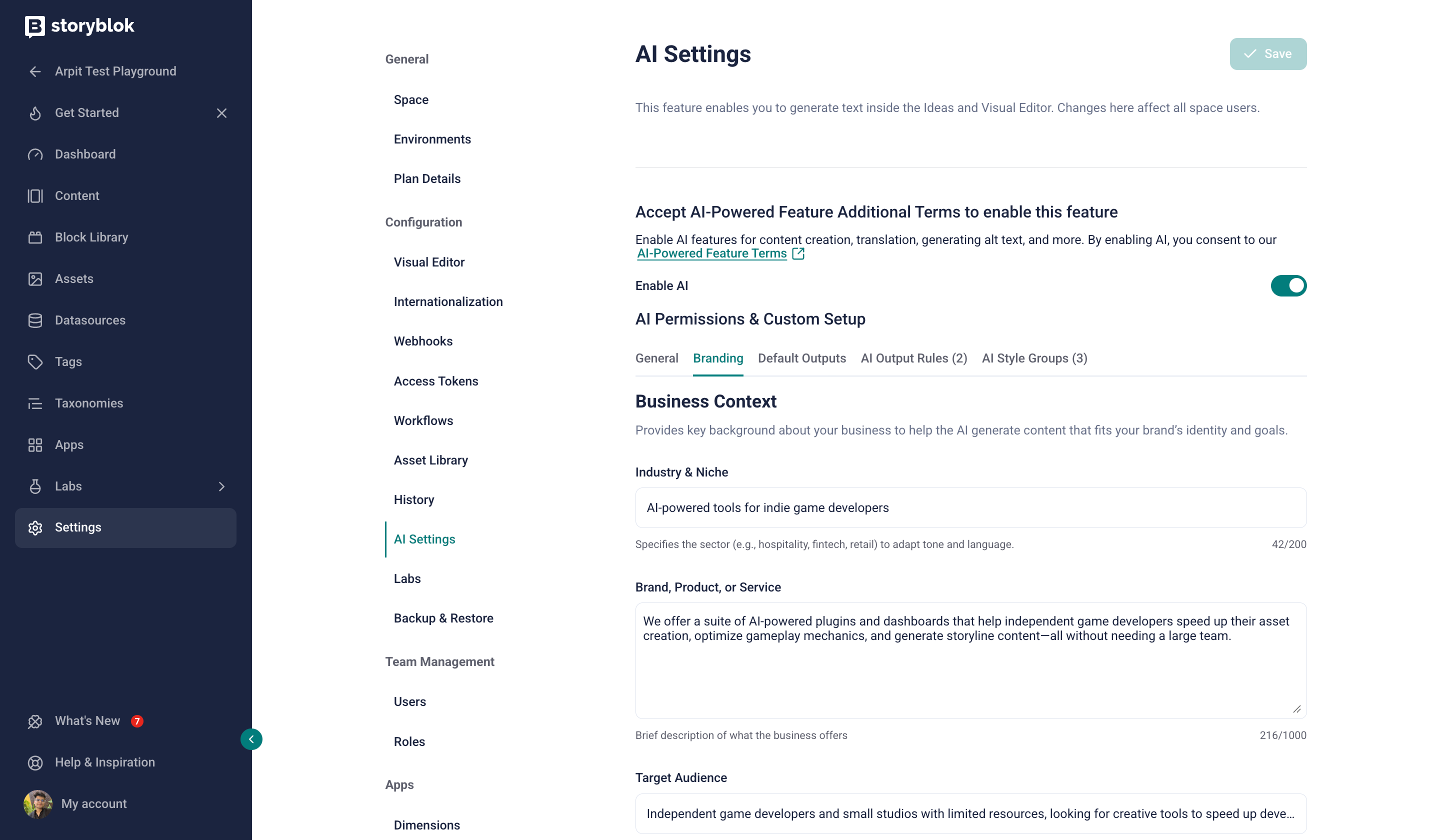
Space AI branding
AI output rules
Section titled “AI output rules”AI output rules are the building blocks of granular AI branding. Write instructions in natural language, so the AI knows how to generate or format content.
Some examples of AI output rules:
- “Avoid pronouns in the first sentence of a paragraph.”
- “Always write the brand name ‘Storyblok’ in bold.”
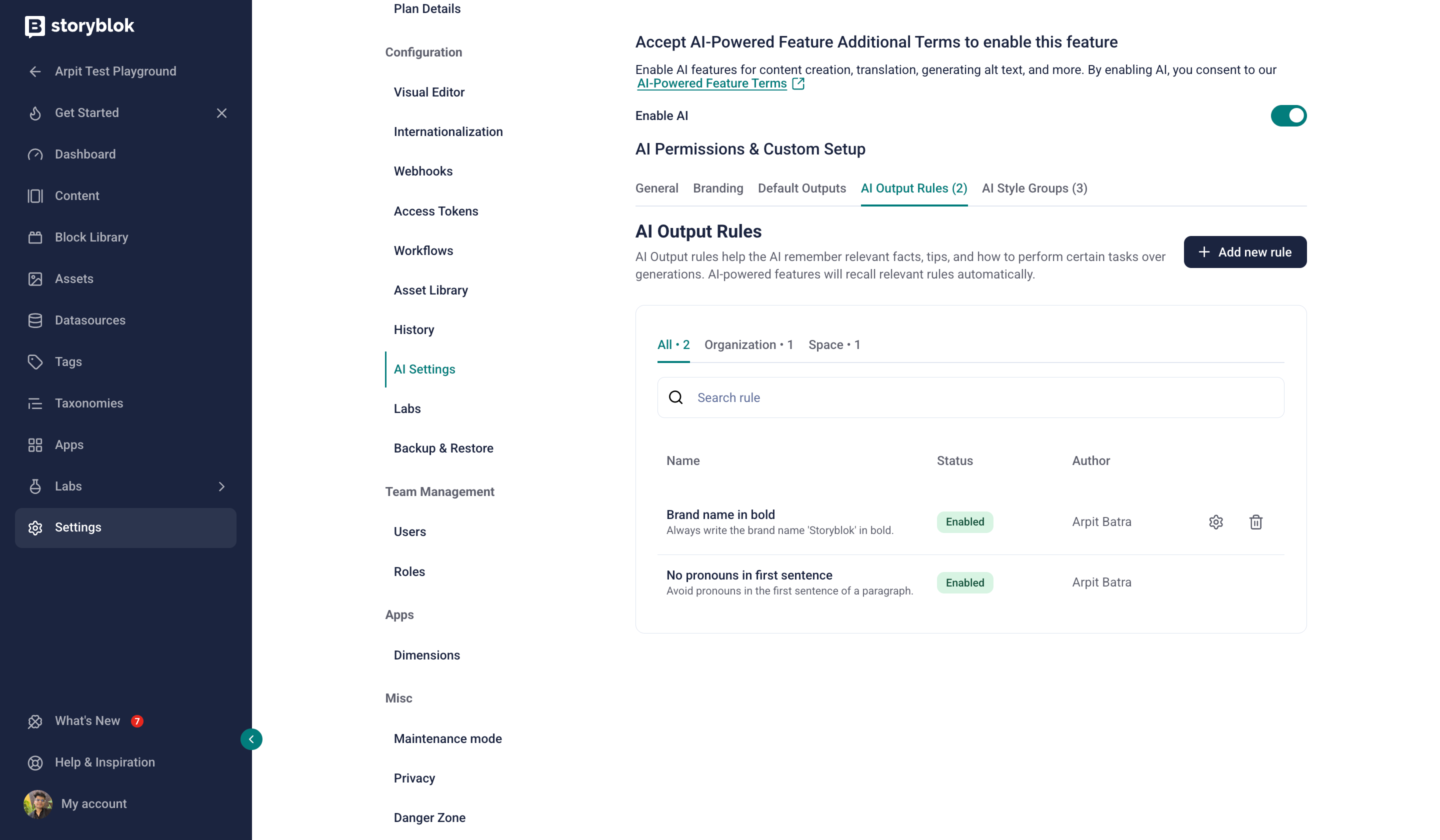
AI output rules list
To create a new rule in a space, open Settings → AI Settings → AI Output Rules and select Add new rule. Name the rule, write the instructions, and select Test Rule before you Save.
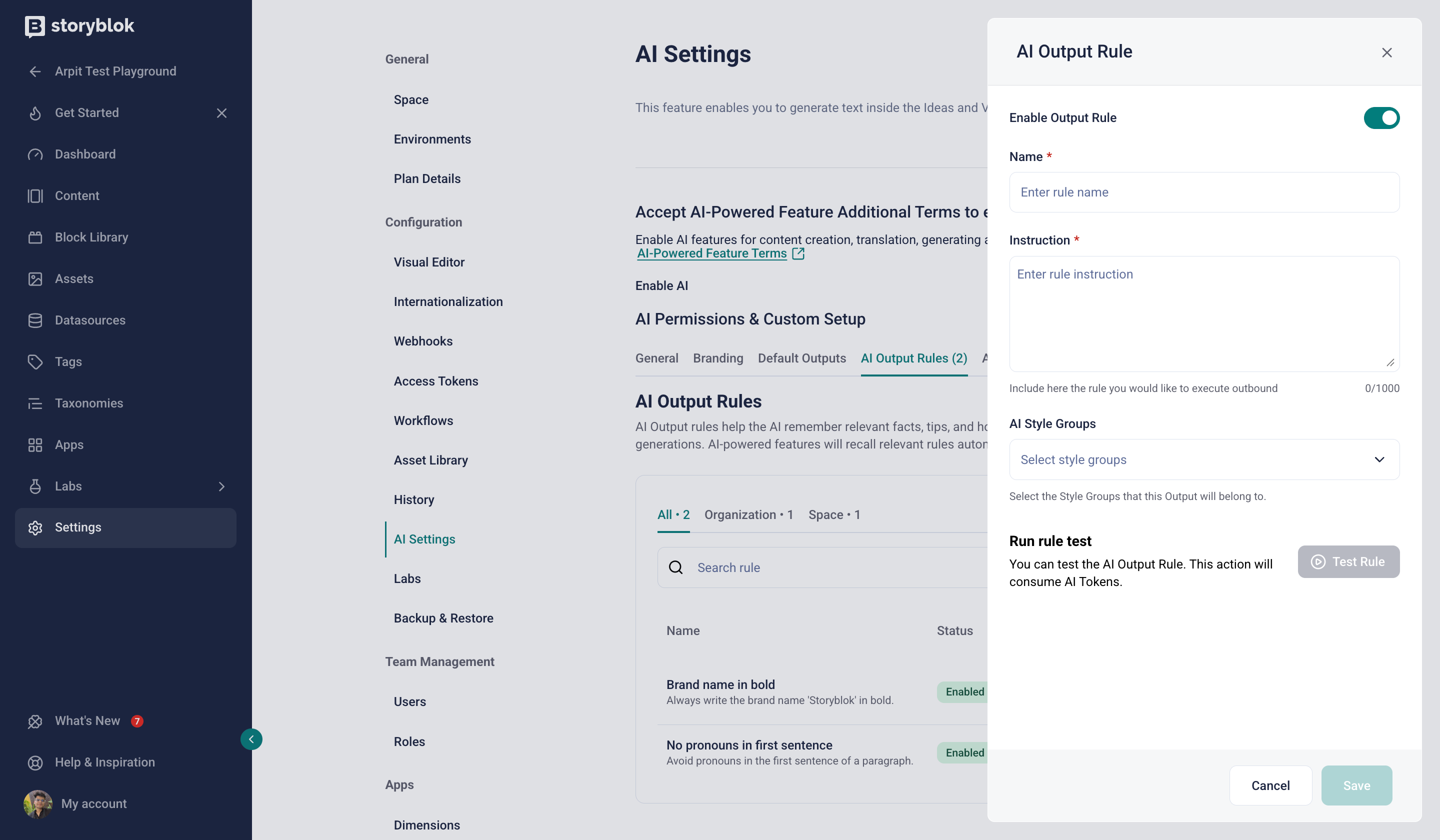
New AI output rule
AI style groups
Section titled “AI style groups”An AI style group is a collection of AI output rules. A style group can contain multiple output rules, and an output rule can be part of multiple style groups. Output rules only affect AI output when they’re part of an active style group, applied as a default at the organization or space level.
For example, an “Internal HR compliance” style group can contain output rules that cover the use of emojis and gender-neutral language.
To create a new group, open Settings → AI Settings → AI Style Groups, select Add new style group, and add output rules to the group. Run Test Style Group before you Save.
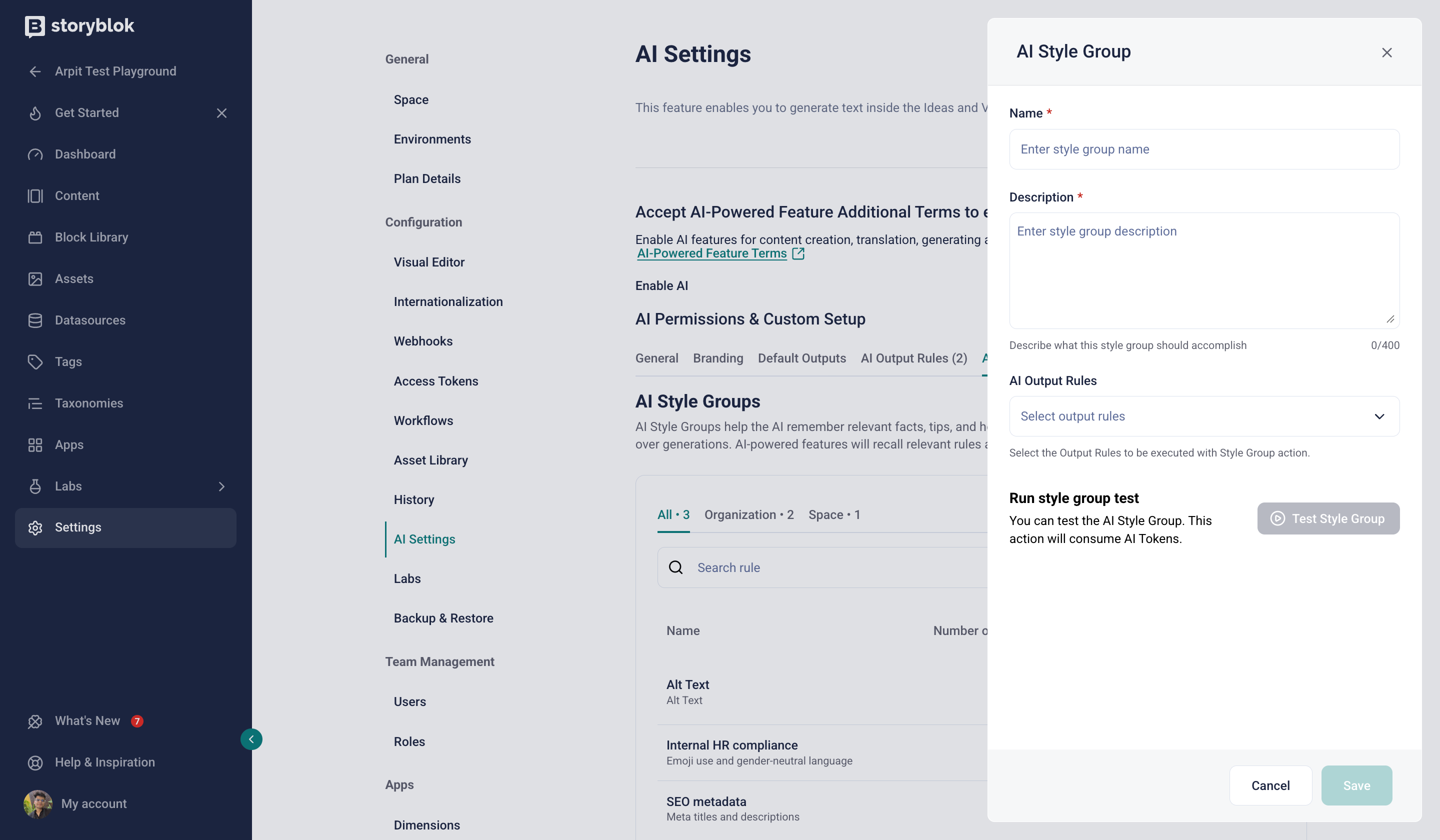
New AI style group
AI default outputs
Section titled “AI default outputs”To apply AI style groups automatically whenever someone generates content with AI, set them as defaults. Open Settings → AI Settings → Default Outputs and select the groups.
Defaults in a space’s settings apply to that space. Defaults in the organization settings apply to all spaces in the organization.
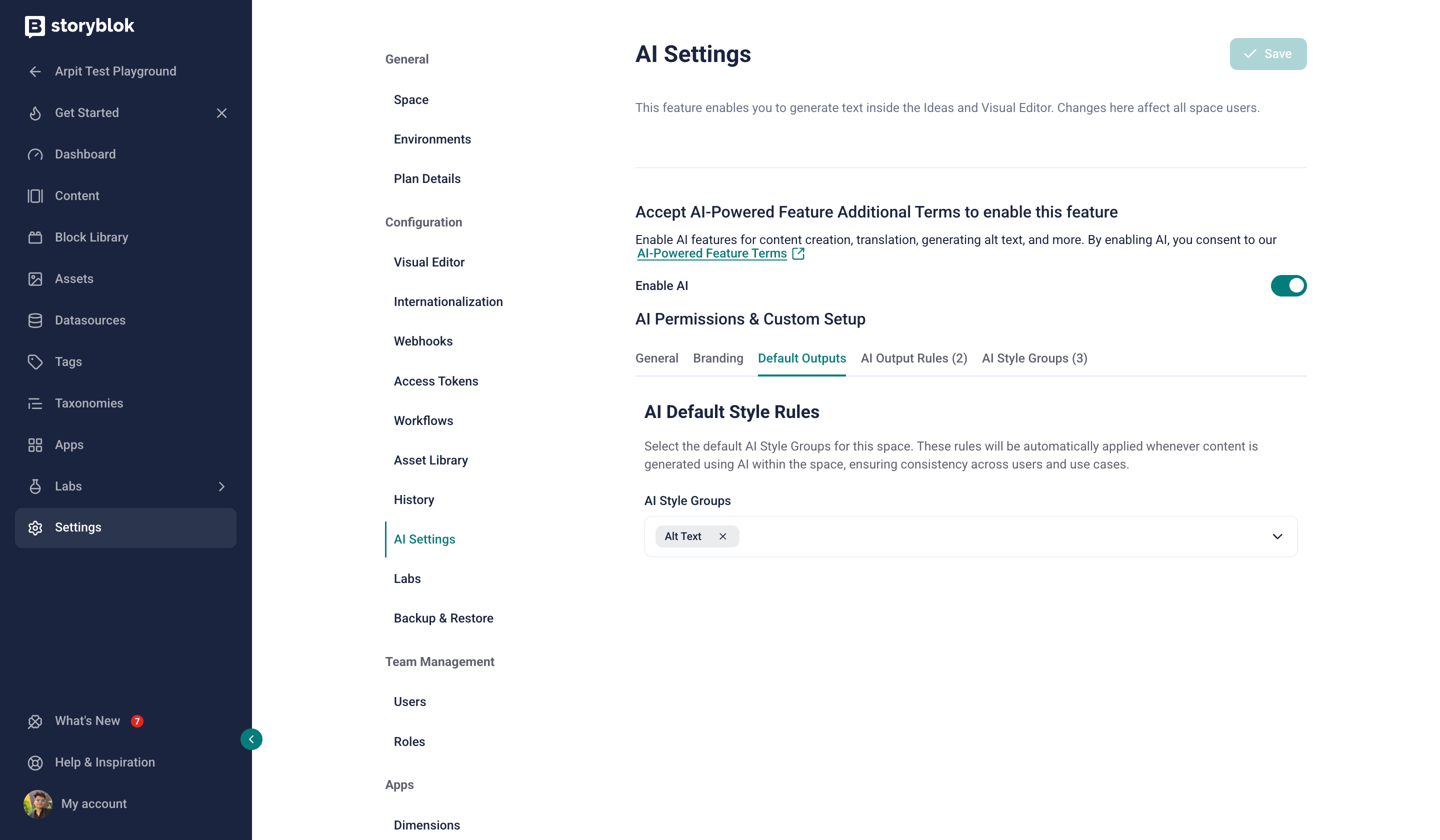
Space default outputs
Organization defaults
Section titled “Organization defaults”In the organization settings, Default Outputs includes two more options:
- Apply organization-defined AI Style Groups to all Spaces: every space must use the organization’s default groups.
- Enable Space-level AI Style Groups: spaces can use individual output rules and style groups.
If you allow space-level control, choose how they combine:
- Combine with organization-level AI Style Groups: apply both the organization and the space’s groups.
- Override organization-level AI Style Groups: prioritize the space’s groups if they exist.
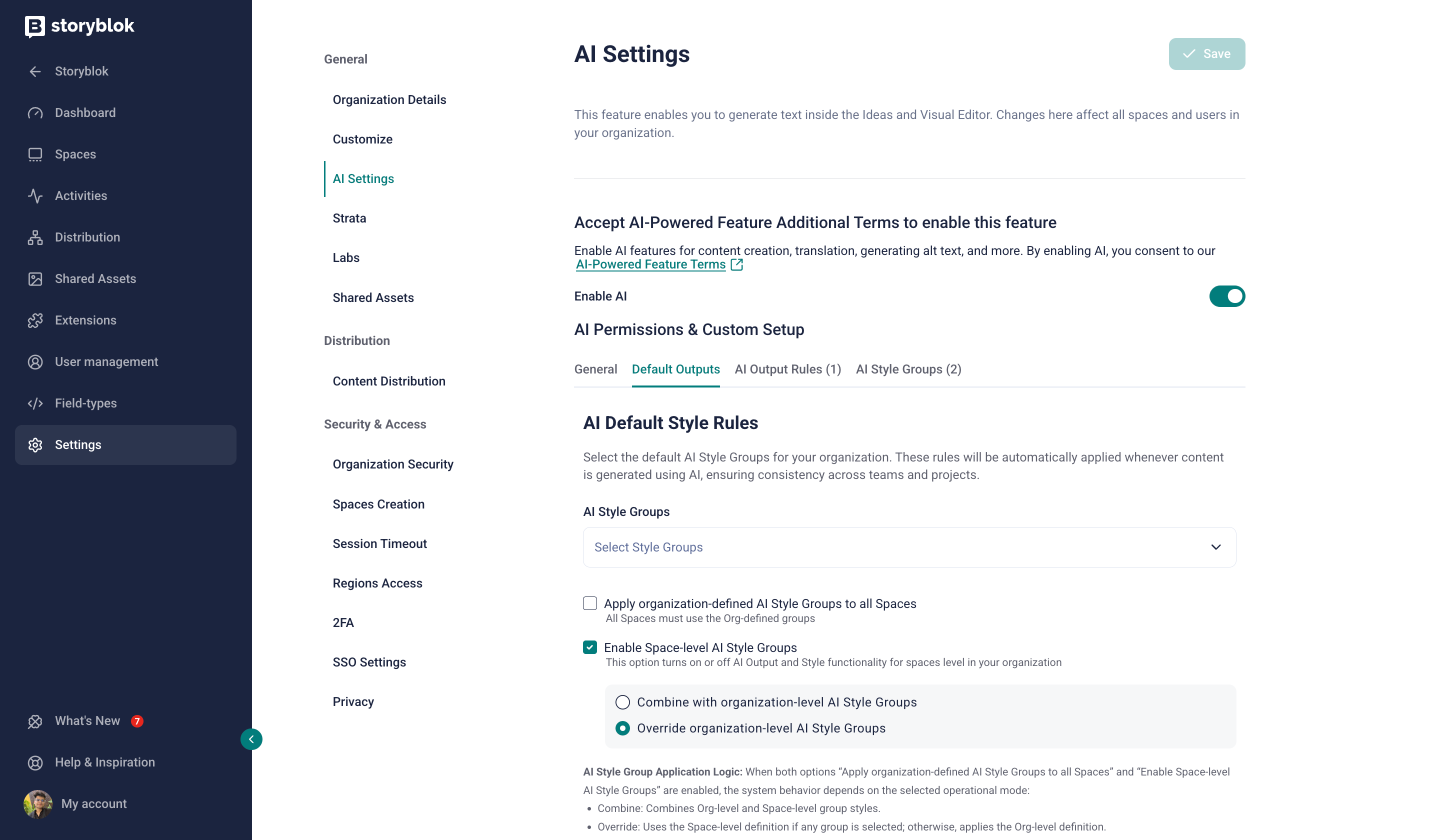
Organization default outputs
AI credits
Section titled “AI credits”Storyblok’s AI features consume AI credits. The number of AI credits available per space depends on your pricing plan. To learn more about AI credits, how they’re calculated, and how they differ from tokens, read the AI Credits Explained blog post.
To track consumption, check the space dashboard for remaining credits and a weekly or monthly breakdown, or the organization dashboard for usage across every space in the organization.
Usage history
Section titled “Usage history”To view a breakdown of AI credit consumption, open Settings → AI Settings → General and select View Usage History. Choose a period and view usage by provider, feature, or user. In the organization settings, you can also view usage by space.
Was this page helpful?
This site uses reCAPTCHA and Google's Privacy Policy (opens in a new window).Terms of Service (opens in a new window) apply.
- Need help?Contact support (opens in a new window)
- Something isn’t right?Check system status (opens in a new window)
Get in touch with the Storyblok community